
Module Set up
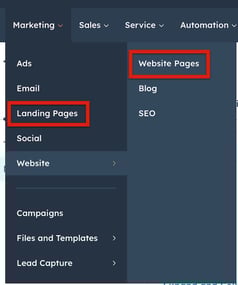
Setting up the a module in HubSpot is easy and straightforward. All you have to do is perform a simple drag and drop.
Now let’s go through the setup steps:
How to use a module:

HubSpot Drag-and-Drop Areas!
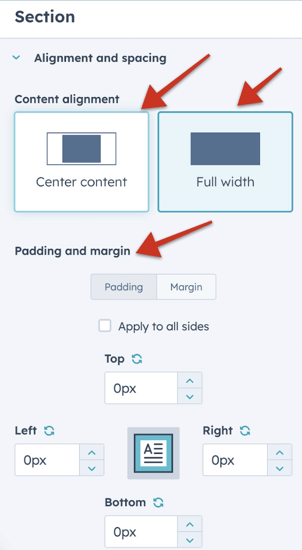
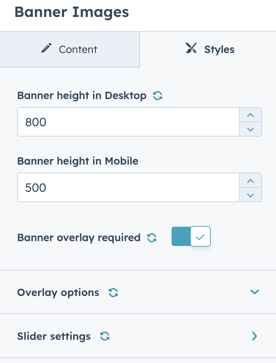
How to customize the module
Contact / How can I get support

DOCUMENTATIONS
Modules
The module is a key component in HubSpot Themes, allowing seamless addition or removal through a drag-and-drop builder.
Customization is made easy with a variety of options provided within the module. The extensive range of available options ensures flexibility in tailoring your content.
During the page creation process, you can find Theme modules in designated areas. These modules play a crucial role in shaping your page.
Explore numerous modules designed for creating your website in HubSpot, compatible with any Theme. Enhance your website's functionality and design with these versatile modules.
Back to top
Introduction:
The Scroll Back to Top module is designed to enhance user experience by providing a quick and easy way for visitors to navigate back to the top of the page.
Installation:
- Visit the HubSpot Marketplace.
- Search for "Scroll Back to Top" module.
- Click "Install" to add the module to your HubSpot account.
Usage:
- After installation, locate the module in your HubSpot dashboard.
- Add the module to your desired page or template using the drag-and-drop builder.
- Customize the module settings as needed, including appearance and behavior.
Customization Options:
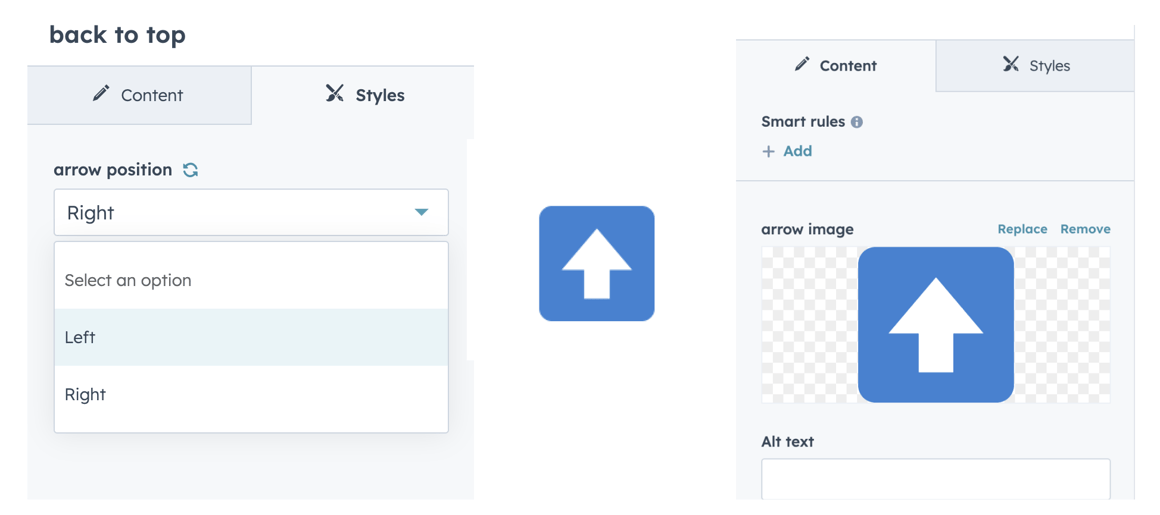
- Style: Choose from different styles to match your website's design.
- Position: Set the position of the scroll button on the page.
Support:
If you encounter any issues or have questions, reach out to our support team at hubspot@techclaro.com.
Feedback:
We value your feedback! If you have suggestions or encounter issues, please let us know at developer@techclaro.com
Note: Ensure that the module is placed within the desired section of your page for optimal functionality.
Page Progress Bar
Introduction: The Page Progress Bar module is designed to enhance user engagement by displaying a visual indicator of the progress as visitors scroll through your webpage.
Installation:
- Navigate to the HubSpot Marketplace.
- Search for the "Page Progress Bar" module.
- Click "Install" to add the module to your HubSpot account.
Usage:
- After installation, locate the module in your HubSpot dashboard.
- Add the module to your desired page or template using the drag-and-drop builder.
- Customize the module settings to align with your website's design and requirements.
Customization Options:
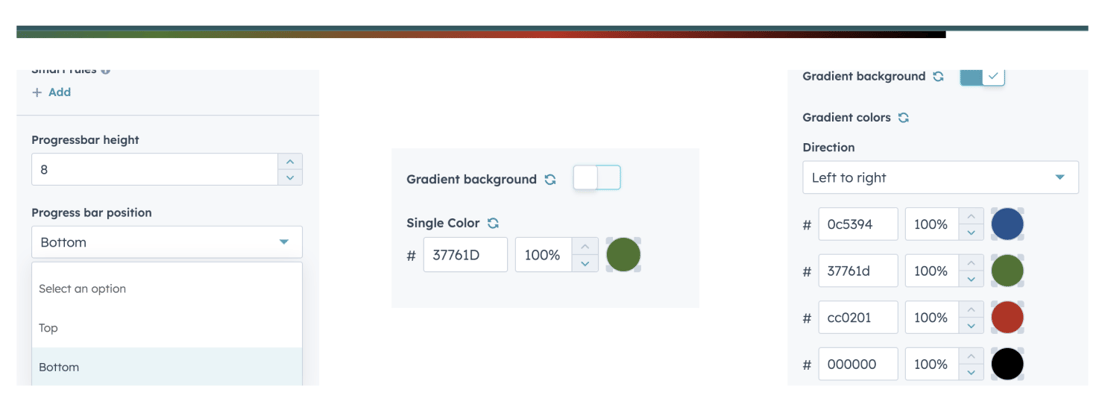
- Style: Choose from various styles to match your website's aesthetic.
- Position: Set the location of the progress bar on the page.
- Color: Customize the color scheme to complement your branding (gradient option available).
- Height: Adjust the height of the progress bar for optimal visibility.
Support:
If you encounter any issues or have questions, reach out to our support team at hubspot@techclaro.com.
Feedback:
We value your feedback! If you have suggestions or encounter issues, please let us know at developer@techclaro.com
Note: Ensure that the module is appropriately placed to provide accurate progress tracking as users scroll through your content.
Banner Slider
Introduction:
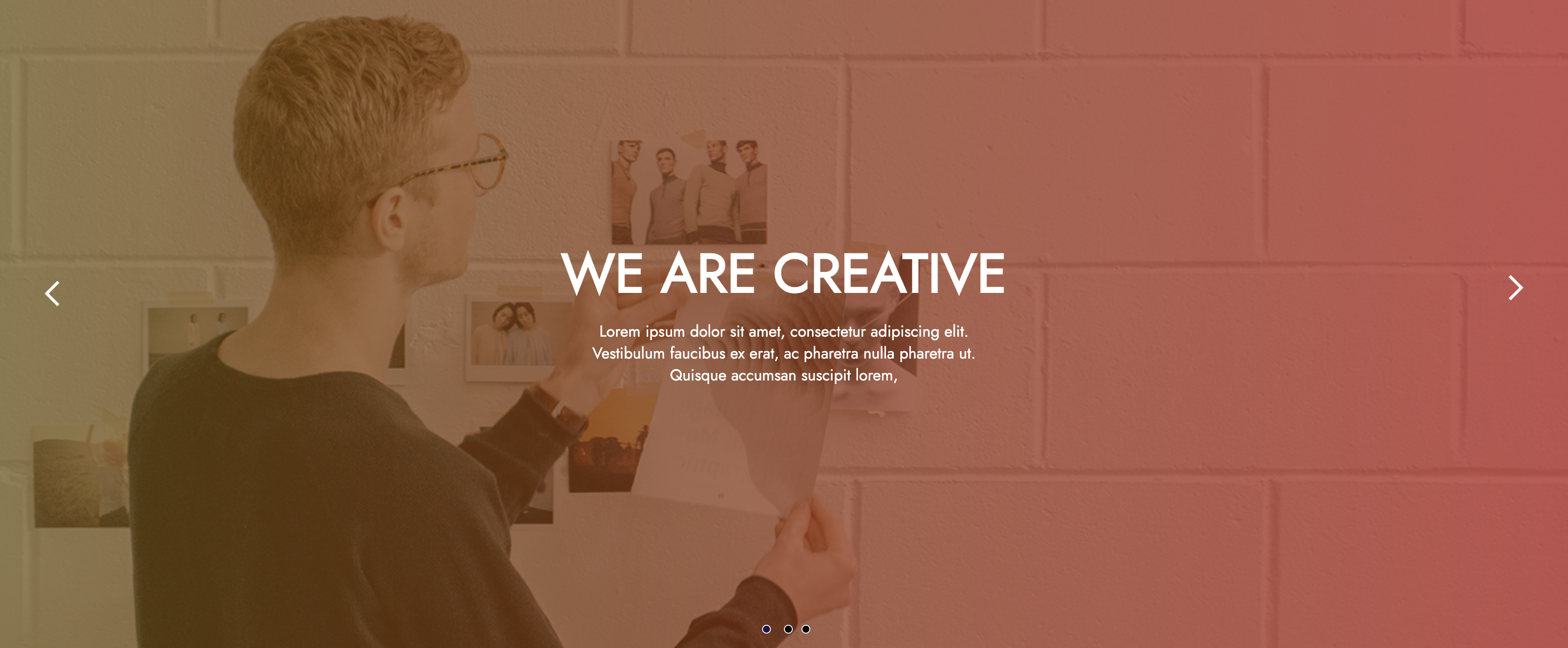
The Banner Slider module is a versatile solution for adding visually appealing image sliders to your HubSpot website. With easy customization options and responsive design, it enhances the visual appeal of your web pages.
Installation
- Visit the HubSpot Marketplace.
- Search for the Banner Slider module.
- Click "Install" to add the module to your HubSpot account.
Usage
-
Add Banner Slider to a Page:
- Edit the page where you want to display the banner slider.
- Add the Banner Slider module to the desired location.
-
Customization:
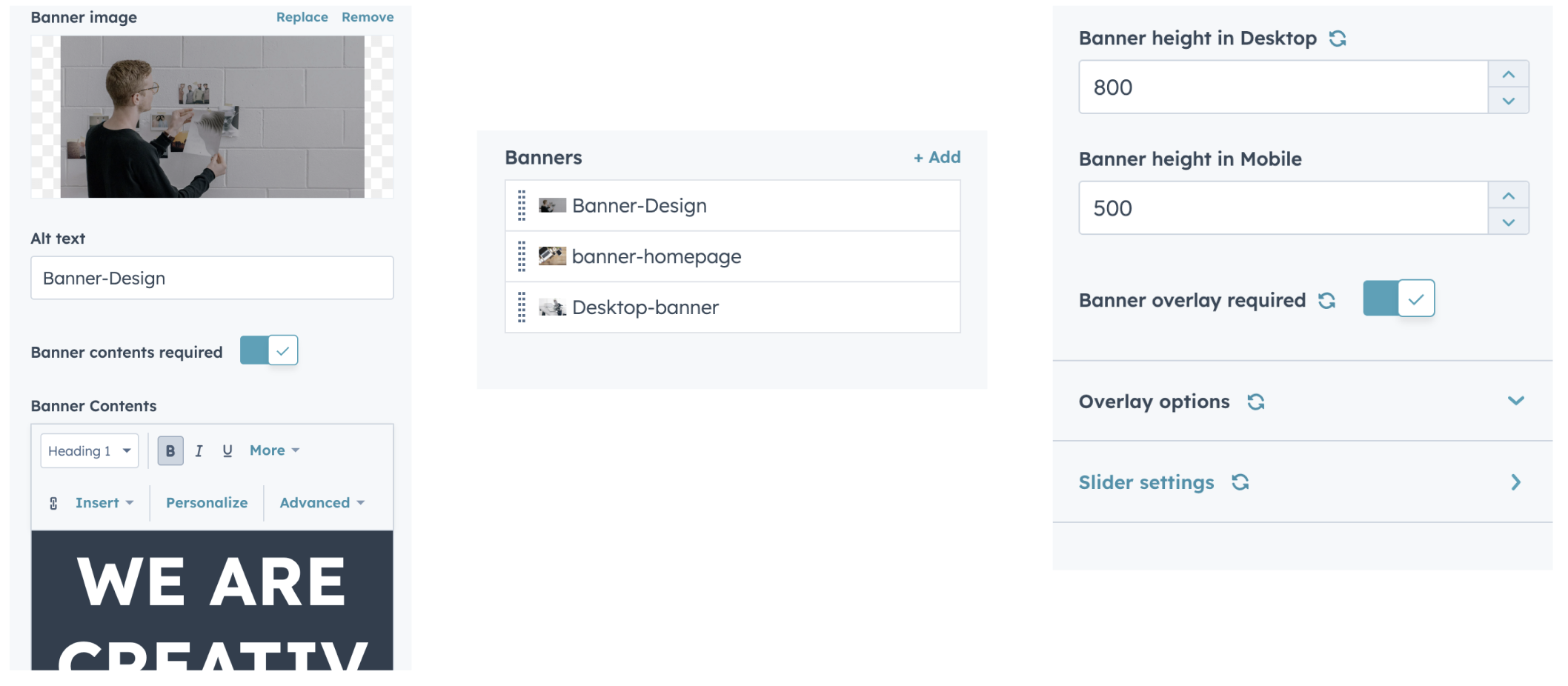
- Upload banner images and add captions.
- Adjust slider speed and transition effects.
- Multiple slider effects
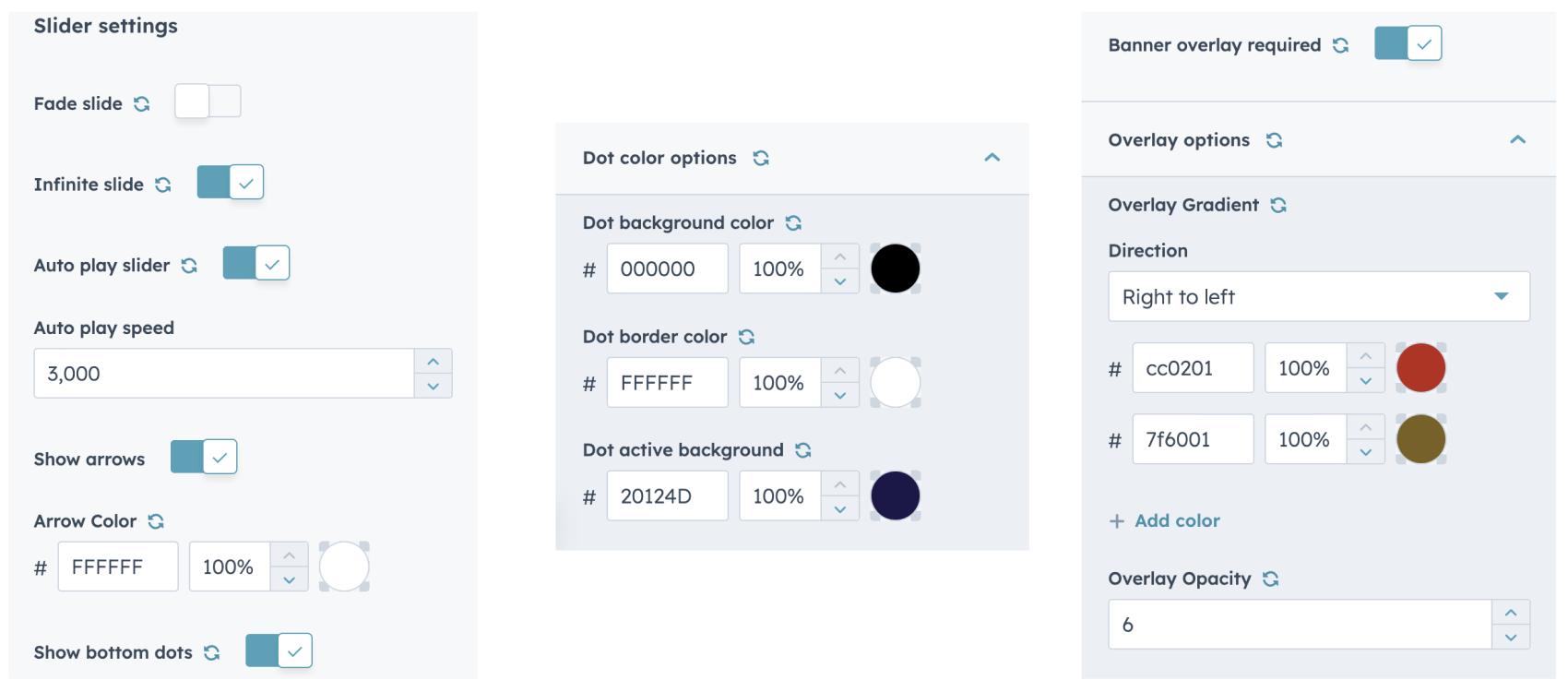
- Include an overlay option for the banner based on the images and text color utilized.
- Add unlimited number of images.
- Slider speed adjustable option.
- Arrows and dot color adjustable, with on/off option.
- Scroll / Fade adjustable option
Support:
If you encounter any issues or have questions, reach out to our support team at hubspot@techclaro.com.
Feedback:
We value your feedback! If you have suggestions or encounter issues, please let us know at developer@techclaro.com
Note: Ensure that the module is appropriately placed to provide accurate progress tracking as users scroll through your content.
Accordion Tabs
Introduction:
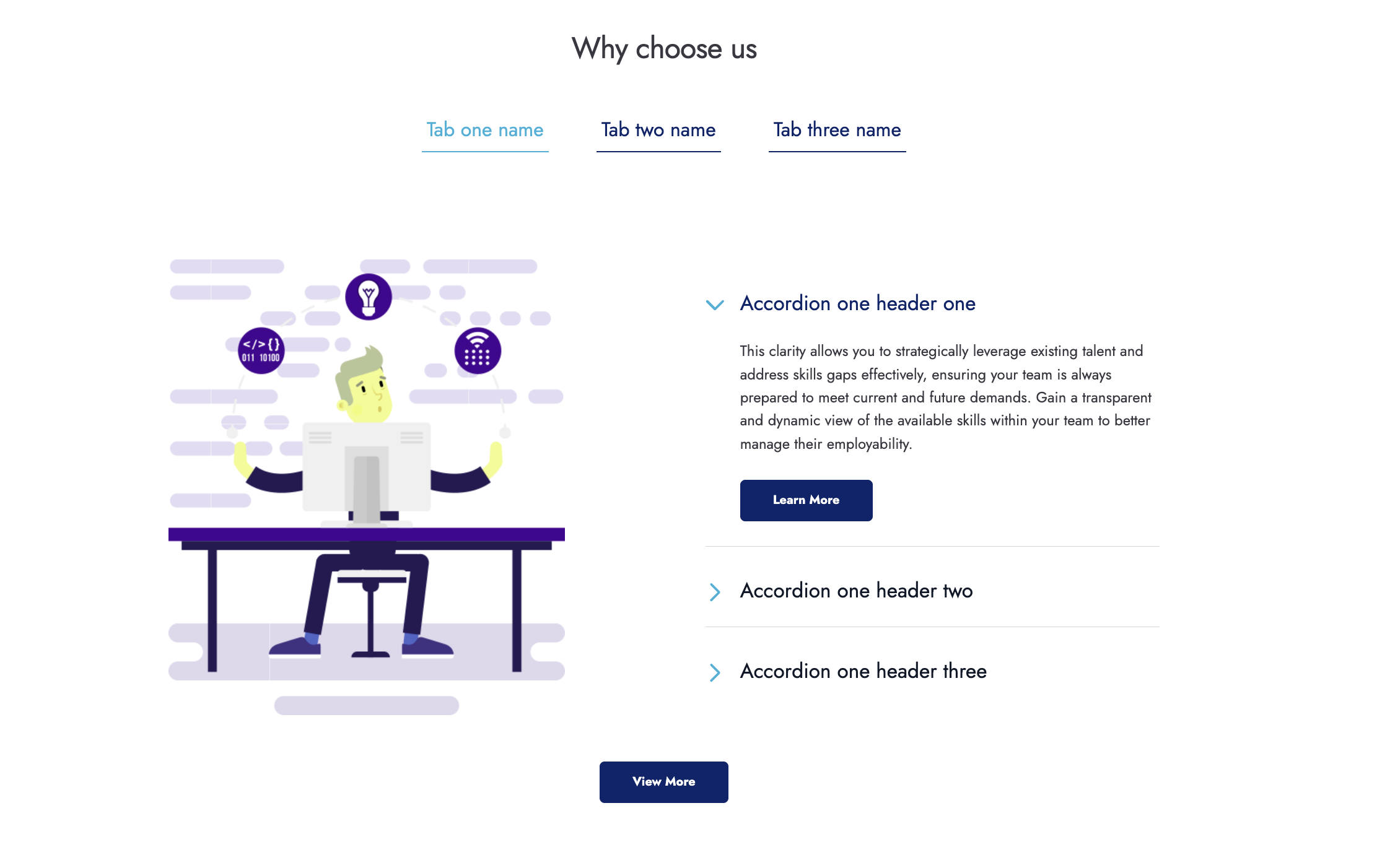
The Accordion Tabs with Top Tab module is a visually appealing and functional content display tool for HubSpot, designed to combine images and accordion functionality within a structured layout. It features a prominent top tab for navigation, with content displayed in a split layout: an image on the left and an accordion on the right. Perfect for storytelling, product showcases, and detailed explanations.
Installation:
- Visit the HubSpot Marketplace.
- Search for "Accordion Tabs" module.
- Click "Install" to add the module to your HubSpot account.
Usage:
- After installation, locate the module in your HubSpot dashboard.
- Add the module to your desired page or template using the drag-and-drop builder.
- Customize the module settings as needed, including appearance and behavior.
Customization Options:
- Style: Choose from various styles to match your website's aesthetic.
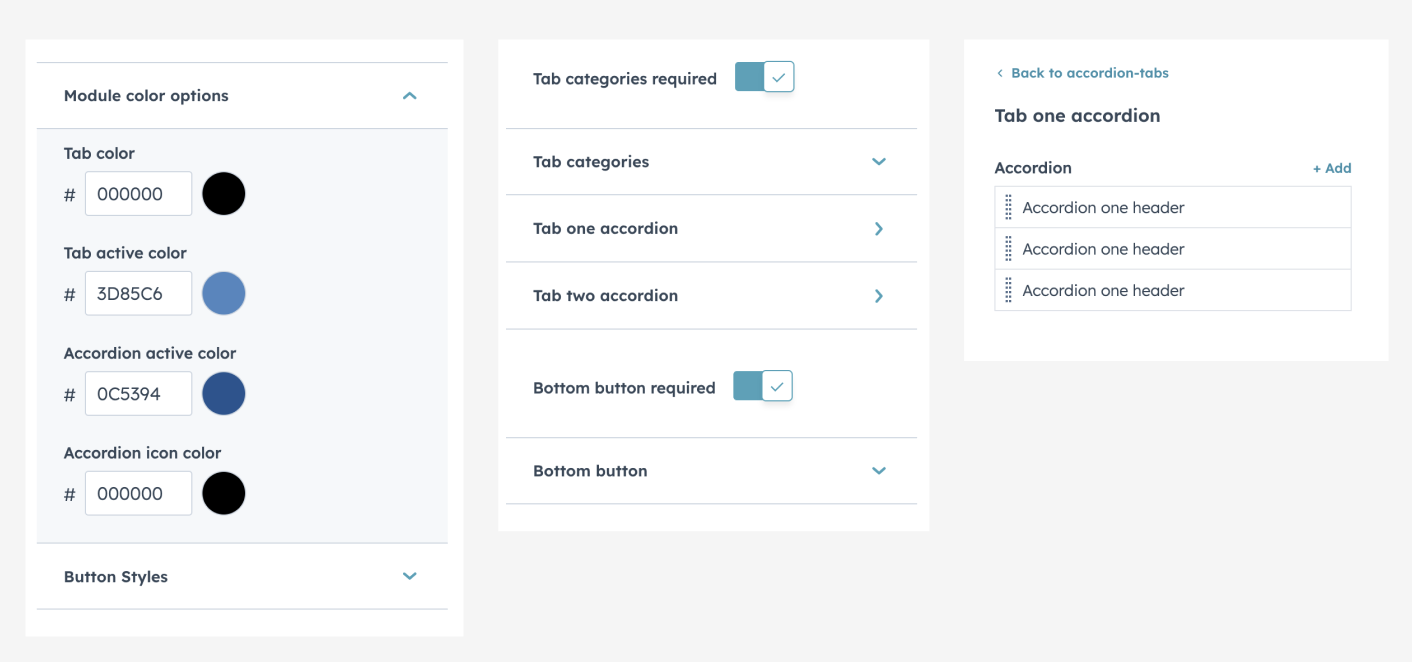
- Color: Customize the color od the default icons to your branding.
- Accordion: Unlimited accordions with images can be added.
- Tab Visibility: Tab option can be shown or hidden as needed.
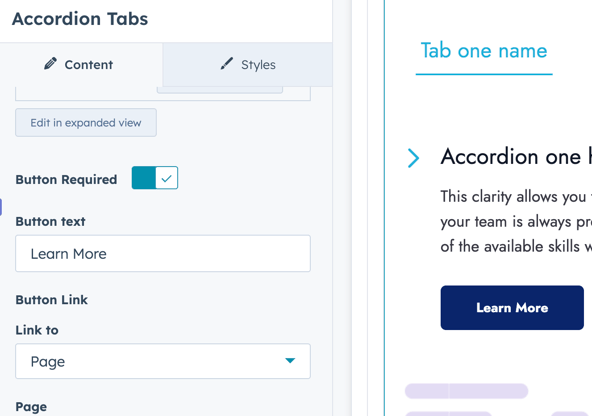
- Button as option: CTA button be applied to each individual accordion item as an option, we can add or remove button based on the requirment.
- Bottom button also can be added as an option, we can add or remove it.
-
Tab Limit: Unlimited tabs can be added based on the accordion contents.
Support:
If you encounter any issues or have questions, reach out to our support team at hubspot@techclaro.com.
Feedback:
We value your feedback! If you have suggestions or encounter issues, please let us know at developer@techclaro.com
Client reviews slider
Dynamic Impressions: Unleash the Potential of the Client Reviews Slider Module
Introduction:
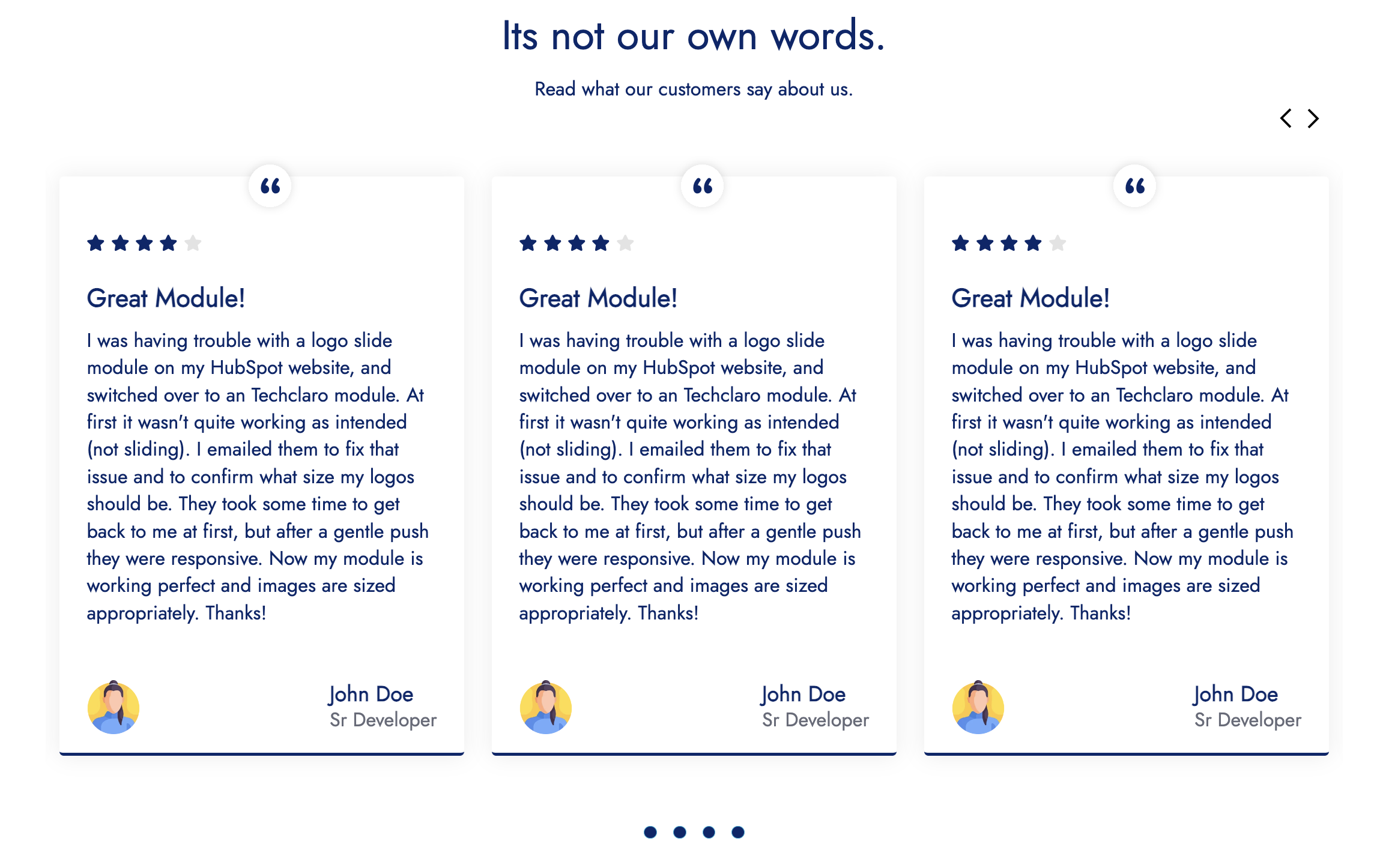
Introducing the Client Reviews Slider Module—a dynamic and visually captivating way to showcase the positive experiences of your satisfied clients. This module seamlessly integrates into your HubSpot website, creating an engaging slider that effortlessly highlights glowing testimonials, ratings, and success stories. Capture the attention of your audience with a sleek and interactive display, allowing visitors to easily navigate through a carousel of client feedback. Elevate your brand's credibility and build trust with this modern and user-friendly Client Reviews Slider Module. Transform your website into a powerful tool for showcasing the positive impact your products or services have had on your valued clients.
Installation:
- Visit the HubSpot Marketplace.
- Search for "Client reviews" module.
- Click "Install" to add the module to your HubSpot account.
Usage:
- After installation, locate the module in your HubSpot dashboard.
- Add the module to your desired page or template using the drag-and-drop builder.
- Customize the layout, color scheme, and typography to match your website's design.
- Add testimonials with corresponding ratings through the module's intuitive interface.
Customization Options:
- Style: Choose from various styles to match your website's aesthetic.
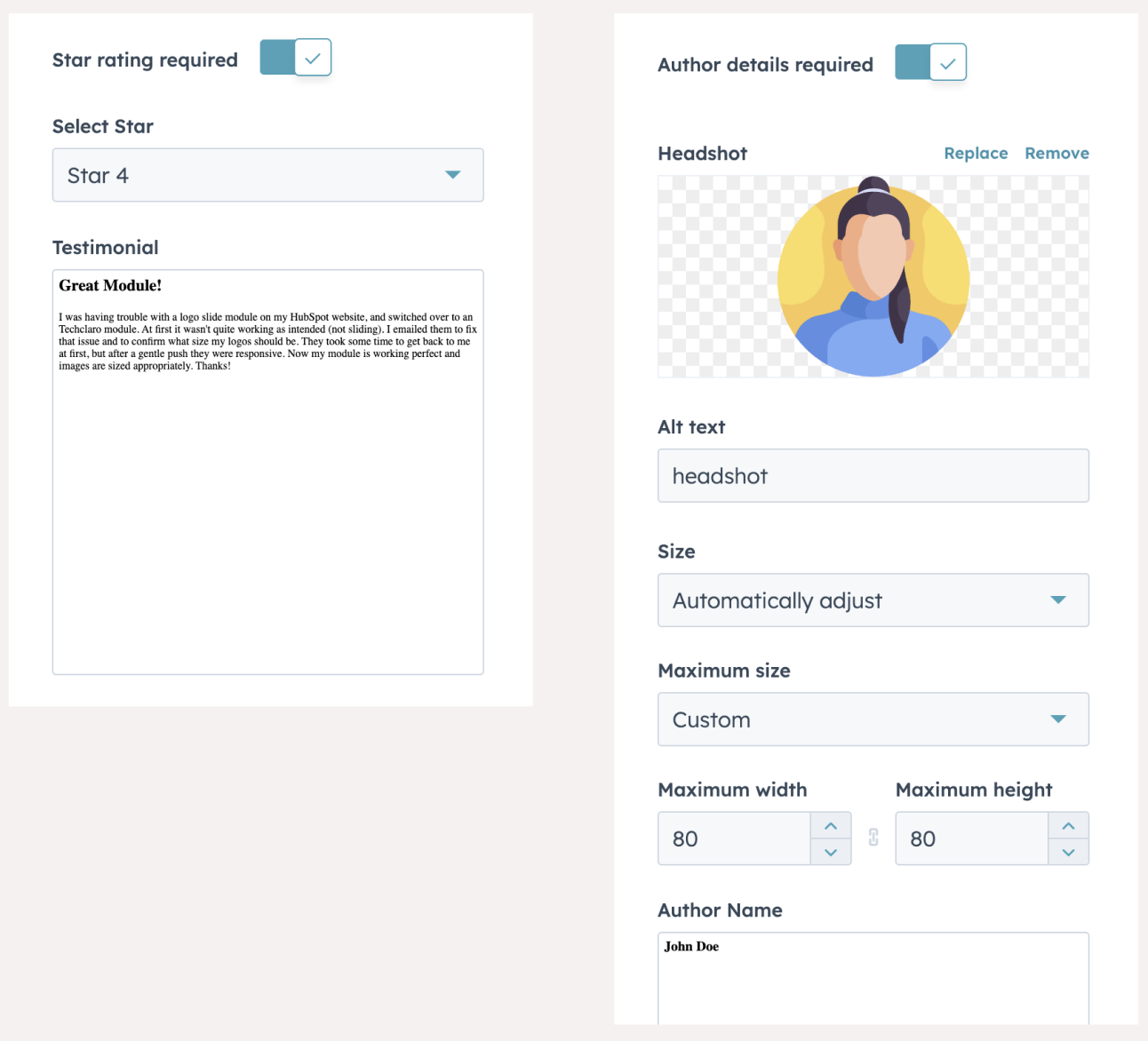
- Testimonial Content: Add the testimonials shared by clients/users.
- Rating Input: Add rating star form 1 to 5
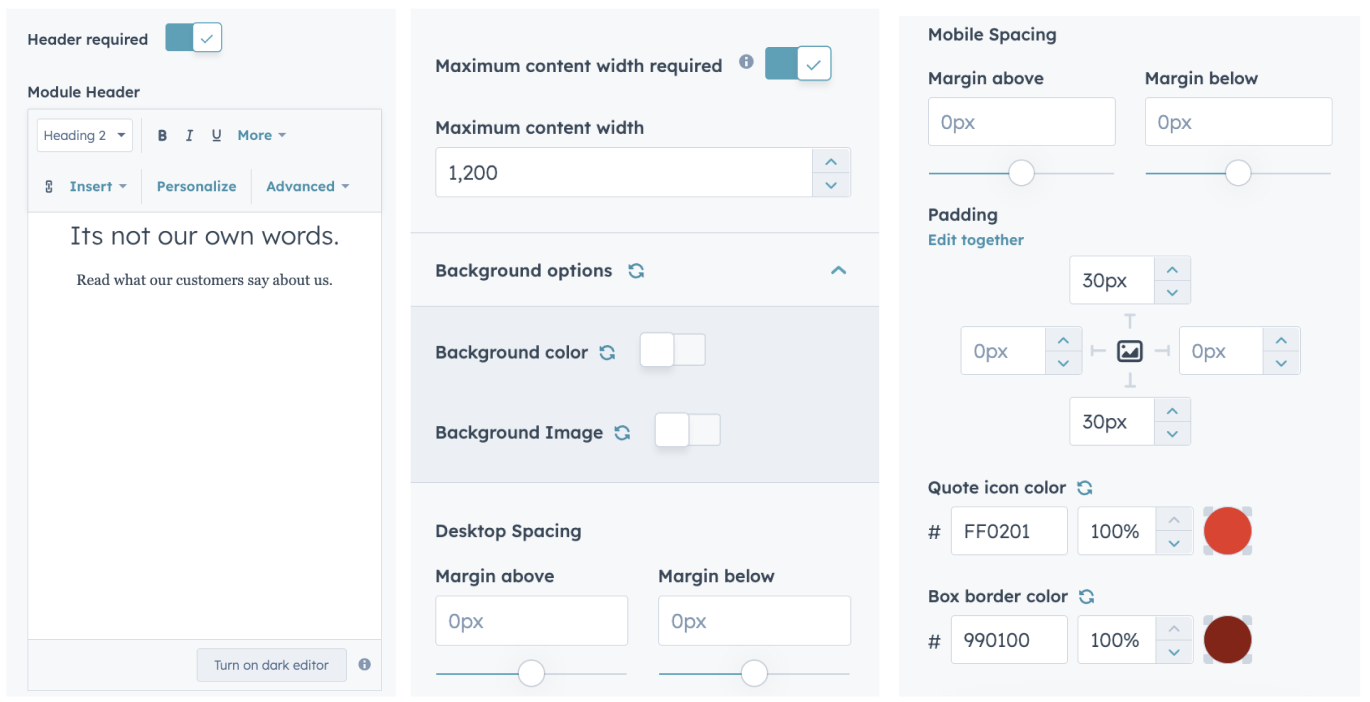
- Color: Customize the color scheme to complement your branding (gradient background option available).
- Client/user Headshot, name, description change option.
- Quote icon on/off and color change option
- Unlimited number of testimonial can be added.
- Module background gradient color/ background image update option available.
- Module header change/hide option
- Quote icon on/off and color change option
- Rating Input: Add rating star form 1 to 5
- Rating star color change option

Support:
If you encounter any issues or have questions, reach out to our support team at hubspot@techclaro.com.
Feedback:
We value your feedback! If you have suggestions or encounter issues, please let us know at developer@techclaro.com
Note: Ensure that the module is appropriately placed to provide accurate progress tracking as users scroll through your content.
Expand and Collapse
Introduction:
The Expand and Collapse Accordion module provides an intuitive way to create accordion-style sections on your HubSpot website. With additional features for background image and color customization, this module allows you to create visually engaging and dynamic content sections.
Installation:
- Visit the HubSpot Marketplace.
- Search for "Expand and Collapse" module.
- Click "Install" to seamlessly integrate the module into your HubSpot account.
Usage:
- After installation, locate the module in your HubSpot dashboard.
- Add the module to your desired page or template using the drag-and-drop builder.
- Customize the layout, color scheme, and typography to match your website's design.
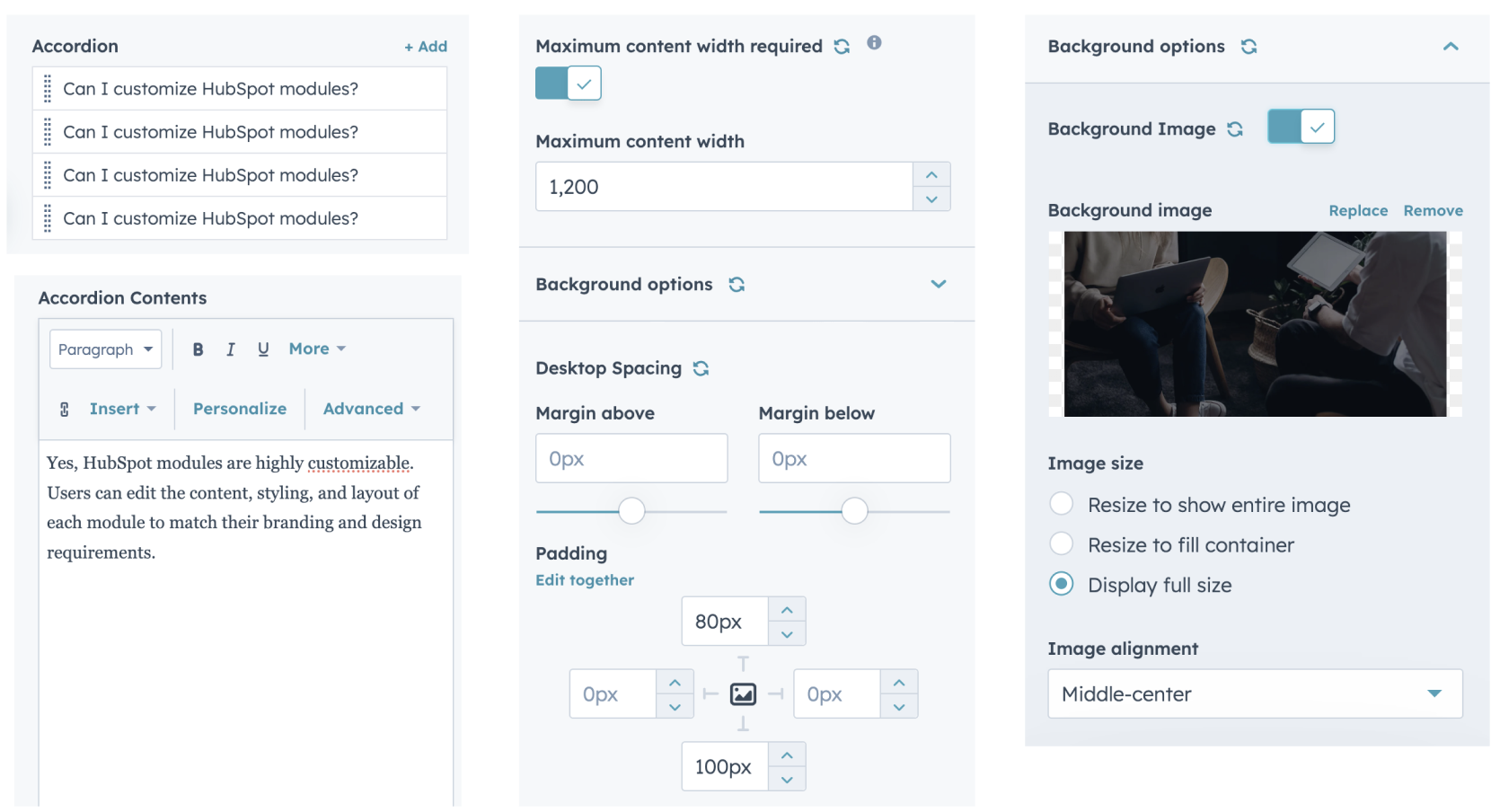
- Upload background images or choose colors for each accordion section.
Customization Options:
- Style: Choose from various styles to match your website's aesthetic.
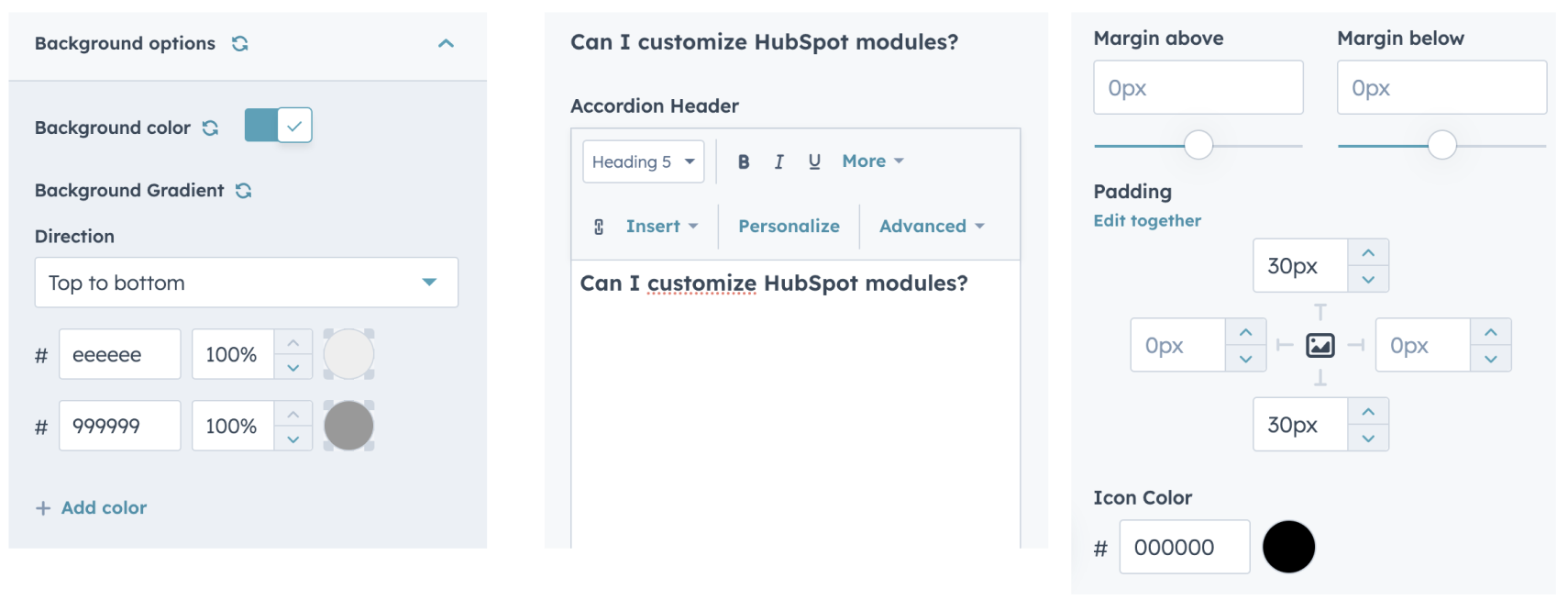
- Locate the "Title" and "Content" fields in the accordion section settings.
- Input the desired title and content for each section.
- Find the "Icon Color" option in the settings.
- Select a color or enter a custom color code to change the icon color.
- Background Color: Module background gradient color/ background image update option available.
- Module header change/hide option
Support:
If you encounter any issues or have questions, reach out to our support team at hubspot@techclaro.com.
Feedback:
We value your feedback! If you have suggestions or encounter issues, please let us know at developer@techclaro.com
Note: Ensure that the module is appropriately placed to provide accurate progress tracking as users scroll through your content.
Popup video
Introduction:
The Popup Video module enhances user engagement by providing a visually appealing way to showcase videos in a popup format on your HubSpot website. With additional features for background image and color customization, this module allows you to create an immersive video experience.


Installation:
- Visit the HubSpot Marketplace.
- Search for "Popup video" module.
- Click "Install" to seamlessly integrate the module into your HubSpot account.
Usage:
- After installation, locate the module in your HubSpot dashboard.
- Add the module to your desired page or template using the drag-and-drop builder.
- Showcase videos in a popup format to capture user attention.
- Enhance the multimedia experience on your website.
- Choose from a variety of options to align with your website's design.
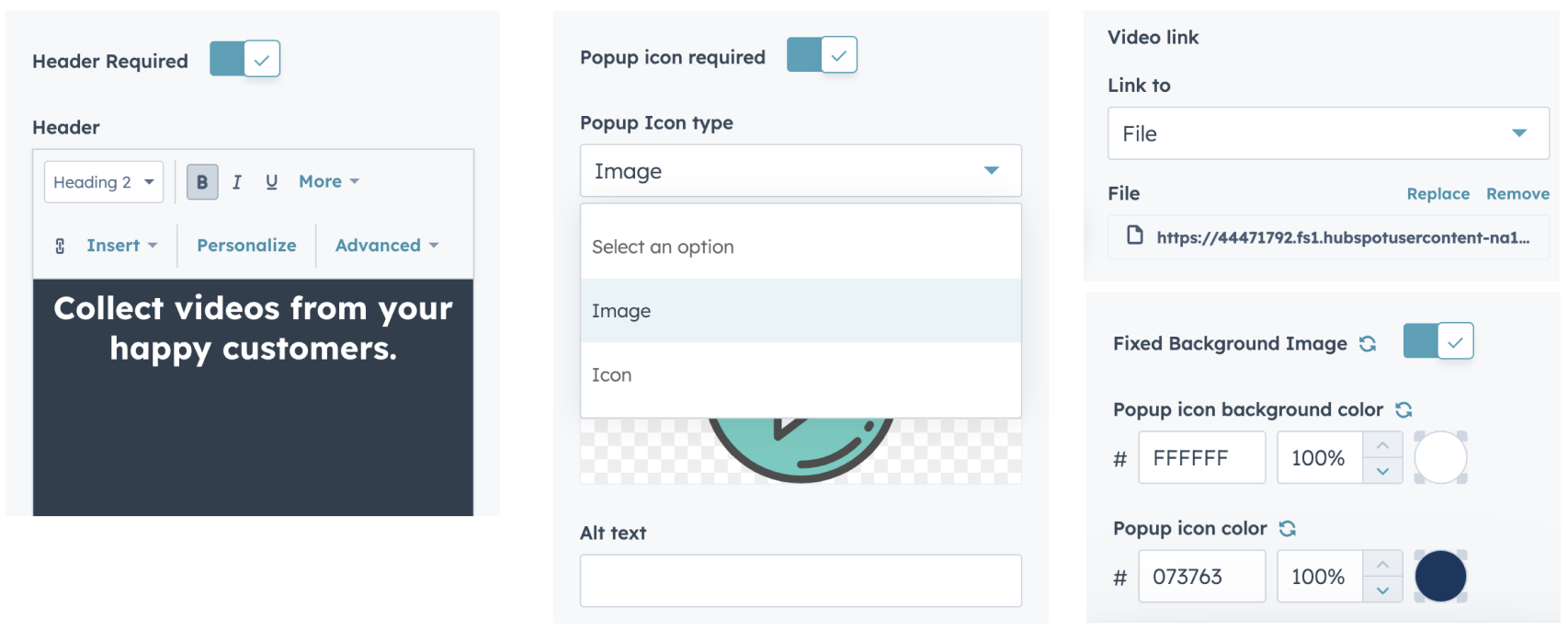
- Support for YouTube, Vimeo, and MP4 video sources.
- Provide flexibility in choosing the platform that best suits your content.
- Easily configure the video popup settings.
- Upload a background image or choose a background color.
Customization Options:
- Style: Choose from various styles to match your website's aesthetic.
- Locate the "Title" and "Content" fields in the accordion section settings.
- Input the desired title and content for each section.
- Find the "Icon Color" option in the settings.
- Select a color or enter a custom color code to change the icon color.
- Background: Module background gradient color/ background image update option available.
- Module header change/hide option
- Parallax background option available
Usage
-
Add Popup Video to a Page:
- Edit the page where you want to showcase a video.
- Add the Popup Video module to the desired location.
-
Customization:
- Easily configure the video popup settings.
- Upload a background image or choose a background color.
Configuration Options
1. Video Source
Description: Select the source of the video you want to showcase in the popup.
- Navigate to the video source settings.
- Choose between YouTube, Vimeo, or MP4 as your video source.
- Enter the video URL or upload an MP4 file accordingly.
2. Background Image
Description: Customize the background of the video popup with an image.
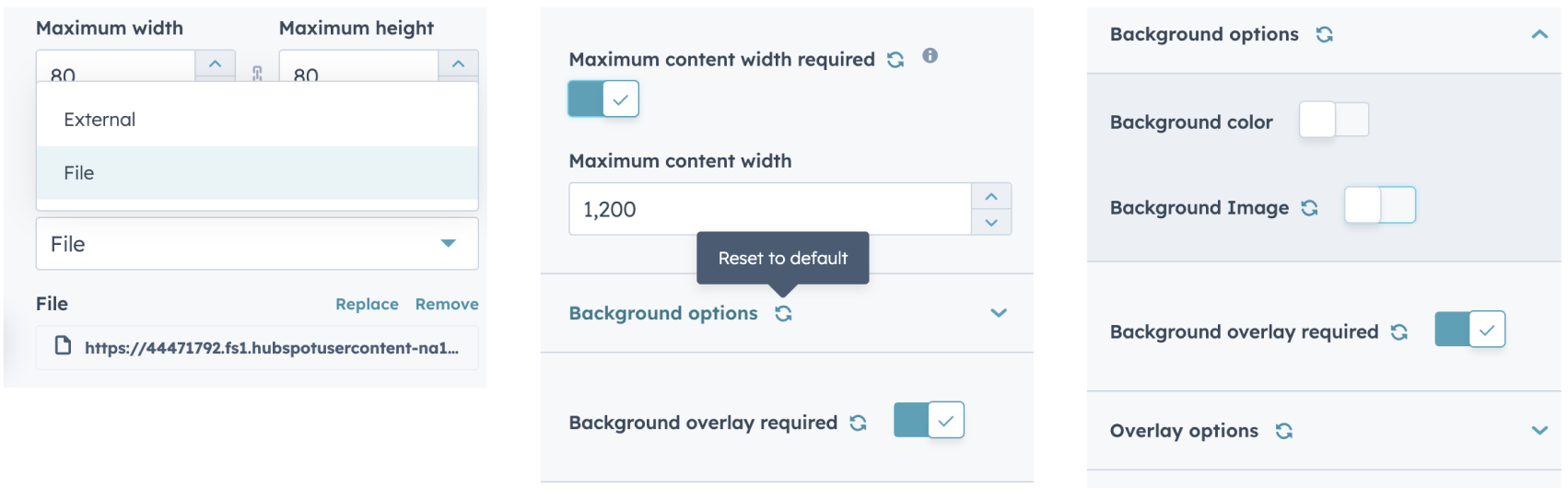
- Find the "Background Image" option in the module settings.
- Upload your desired background image or choose from the available options.
3. Color Options
Description: Choose and customize colors for the background of the video popup.
- Navigate to the color options section in the module settings.
- Select a color palette or enter custom color codes.
- Apply the chosen colors to the background of the video popup.
Support:
If you encounter any issues or have questions, reach out to our support team at hubspot@techclaro.com.
Feedback:
We value your feedback! If you have suggestions or encounter issues, please let us know at developer@techclaro.com
Note: Ensure that the module is appropriately placed to provide accurate progress tracking as users scroll through your content.
Flash Message
Introduction:
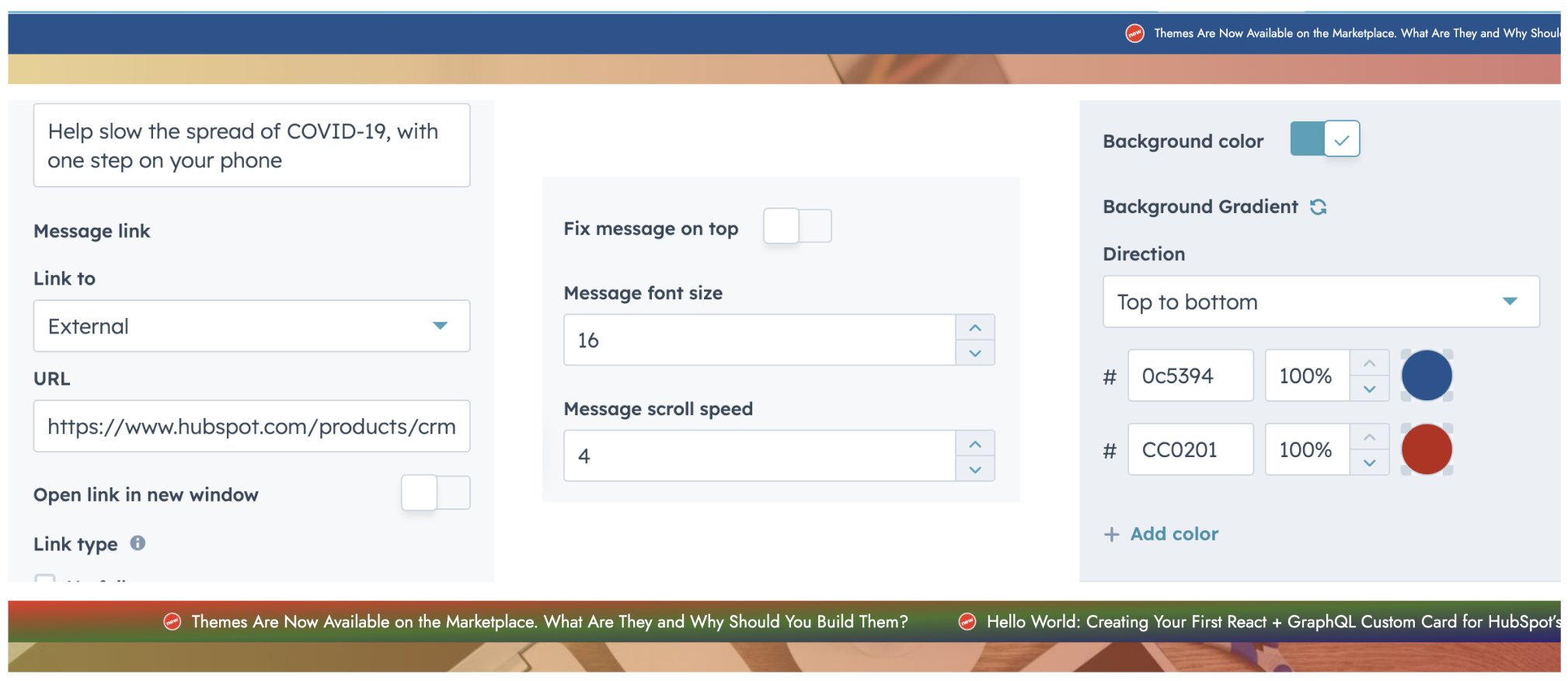
The Flash Message module is a customizable solution for displaying highlighted messages with icons on HubSpot websites. It offers various options for customization, including font size, animation speed, multiple background choices, and the ability to fix the message to the top of the page.
Installation:
- Visit the HubSpot Marketplace.
- Search for "Flash Message" module.
- Click "Install" to add the module to your HubSpot account.
Usage:
- After installation, locate the module in your HubSpot dashboard.
- Add the module to your desired page or template using the drag-and-drop builder.
- Customize the module settings as needed, including appearance and behavior.
Customization Options:
- Style: Choose from various styles to match your website's aesthetic.
- Position: Set the location of the progress bar on the page.
- Color: Customize the color scheme to complement your branding (gradient option available).
- Font Size: Option to change the font size
- Animation Speed: Option to adjust the scroll speed
- Positioning: Toggle the option to fix the message to the top.
Support:
If you encounter any issues or have questions, reach out to our support team at hubspot@techclaro.com.
Feedback:
We value your feedback! If you have suggestions or encounter issues, please let us know at developer@techclaro.com
Simple blog listing
Transform Your Blog Experience: Introducing Our Dynamic Post Showcase for free
Introduction:
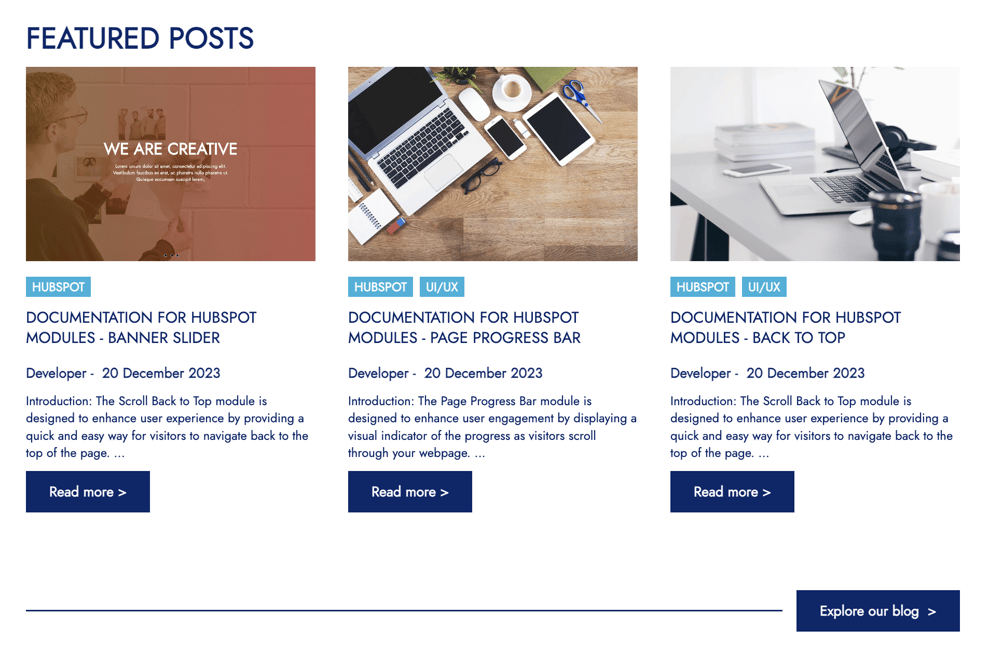
Enhance your website's capabilities using our versatile Free 'Simple blog listing' module. This powerful tool enables you to effortlessly display your blog posts in an engaging fashion.
Installation:
- Visit the HubSpot Marketplace.
- Search for "Simple blog listing" module.
- Click "Install" to add the module to your HubSpot account.
Usage:
- After installation, locate the module in your HubSpot dashboard.
- Add the module to your desired page or template using the drag-and-drop builder.
- Customize the layout, color scheme, and typography to match your website's design.
- Select the blog based on Recent Posts, Popular Posts.
- Set the post layout as boxed or full width based on the option provided.
Customization Options:
- How posts show up
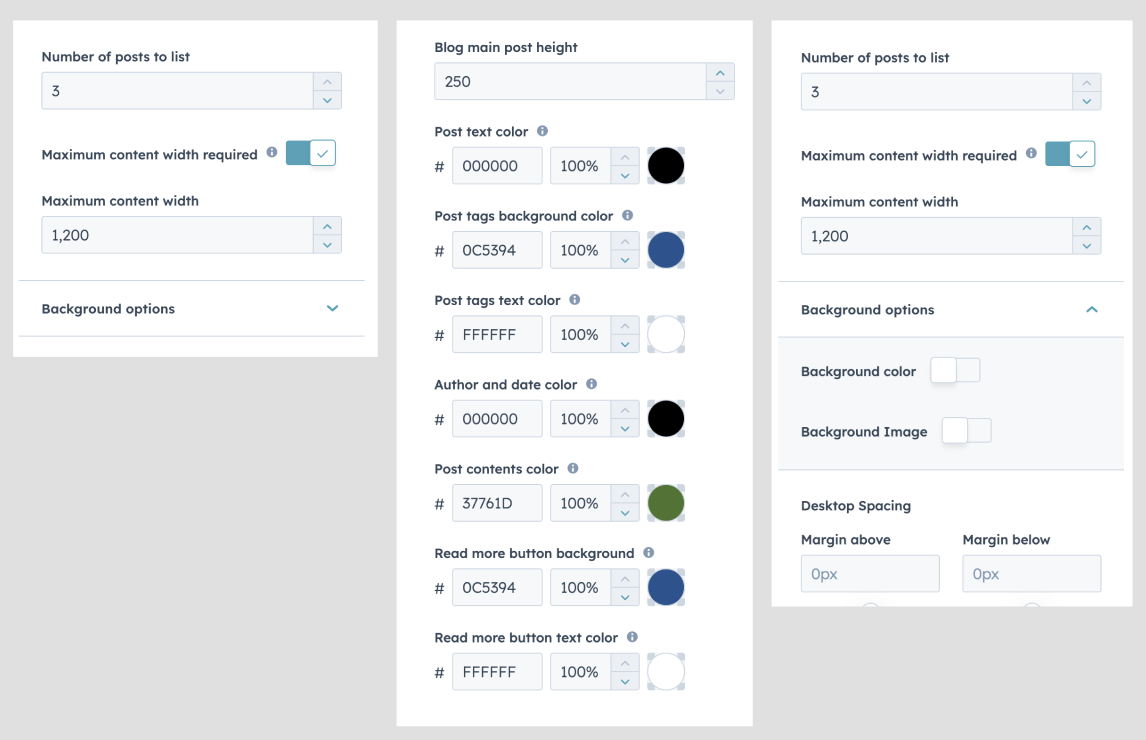
You can pull in recent posts, popular posts, or posts that share a specific tag. You choose which blog to use and how many posts appear in the row (two or three side by side on larger screens).
- Look and layout
You can match your site's style: colors, gradients, or a background image. If you use a background image, you can add a tint or overlay so text stays readable. You can also limit how wide the module sits on the page and adjust spacing on desktop and mobile so it doesn’t feel cramped or too airy. - Images
You set how tall the featured image area is on each card. If a post doesn’t have a featured image, you can set a default picture so cards always look complete. - Text and readability
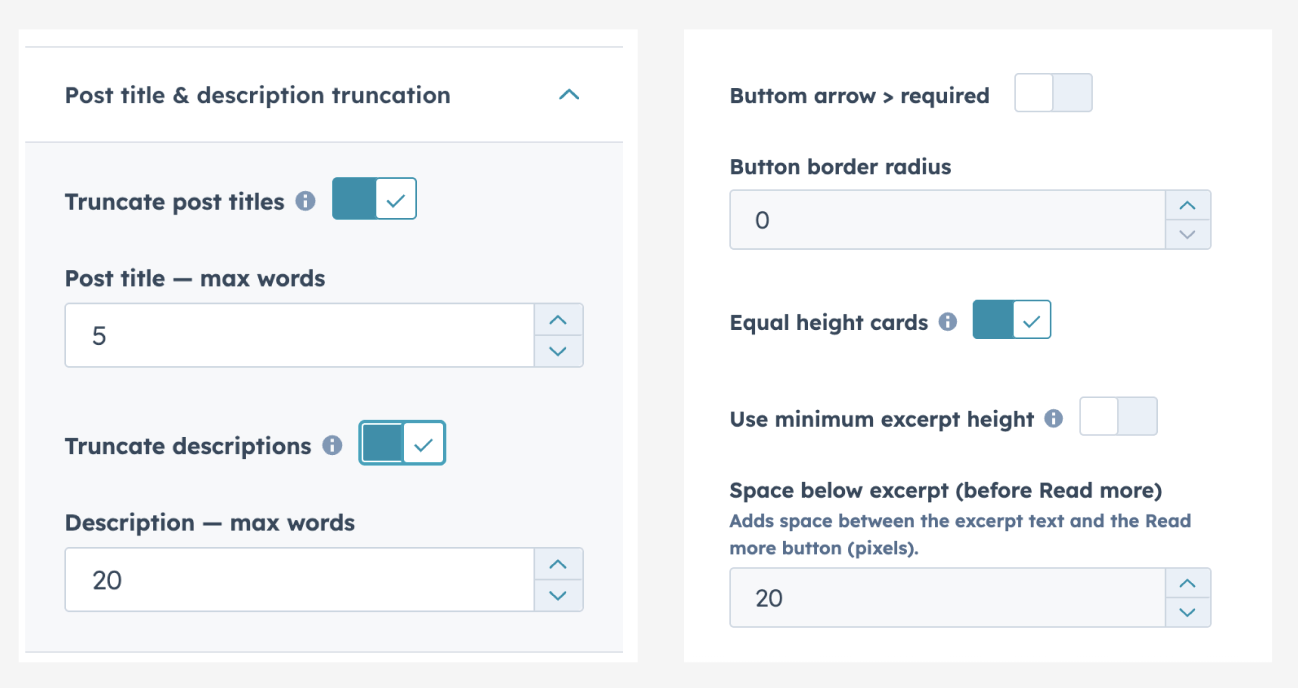
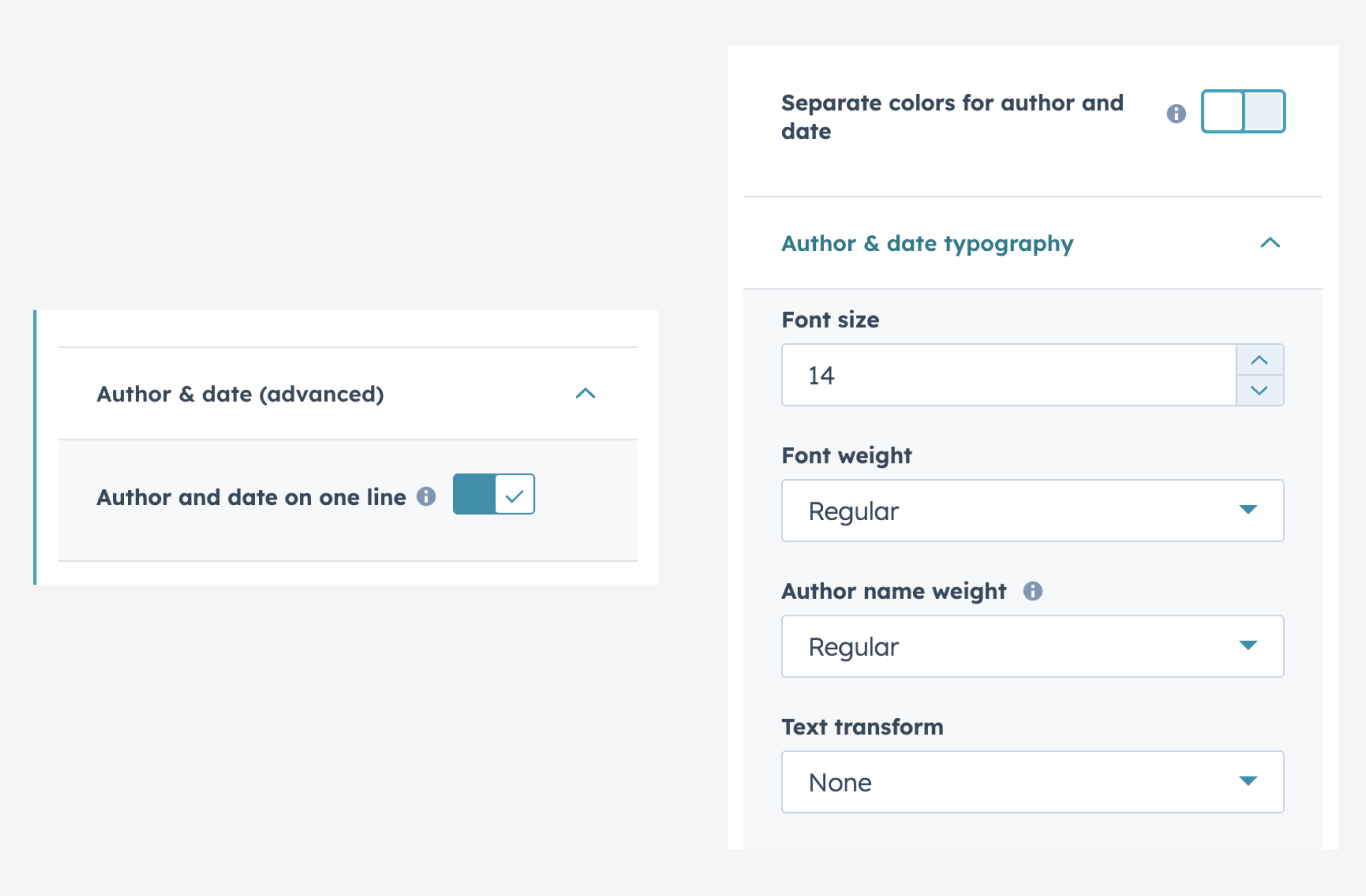
You can shorten long titles or descriptions by limiting how many words show. You can change the “Read more” wording. Colors are adjustable for headlines, tag labels, excerpt text, author and date, and both the Read more button and the optional bottom button. - Author and date
You can turn author and/or publish date on or off, change short labels like “By” / “On”, choose how the date looks (e.g. US vs EU style), optionally show the author’s photo, and put author and date on one line if you prefer. - Module title
You can show or hide the heading at the top (e.g. "Featured posts") and edit that text. - Bottom button ("go to the blog")
You can add an optional button at the bottom—on or off. When it's on, you set where it goes (usually your main blog page) and the button label. - Even card heights
There’s an option to make cards in the same row the same height so the layout looks neat when titles and excerpts differ in length. - Fine-tuning the excerpt area
If you want a minimum amount of space for the excerpt on desktop (for a uniform look), that's optional; spacing before the Read more button can also be adjusted. On phones and narrow screens, the layout is tuned so the excerpt doesn't leave a big empty gap above the button.
Support:
If you encounter any issues or have questions, reach out to our support team at hubspot@techclaro.com.
Feedback:
We value your feedback! If you have suggestions or encounter issues, please let us know at developer@techclaro.com
If you're satisfied with the module, we'd greatly appreciate it if you could take a moment to share your feedback in a review. Your insights are invaluable to us and can help others make informed decisions. Thank you for your time and support!
Note: Ensure that the module is appropriately placed to provide accurate progress tracking as users scroll through your content.
Blog posts layout
Transform Your Blog Experience: Introducing Our Dynamic Post Showcase
Introduction:
Enhance your website's capabilities using our versatile 'Blog posts layout' module. This powerful tool enables you to effortlessly display your blog posts in an engaging fashion.
Installation:
- Visit the HubSpot Marketplace.
- Search for "Blog posts layout" module.
- Click "Install" to add the module to your HubSpot account.
Usage:
- After installation, locate the module in your HubSpot dashboard.
- Add the module to your desired page or template using the drag-and-drop builder.
- Customize the layout, color scheme, and typography to match your website's design.
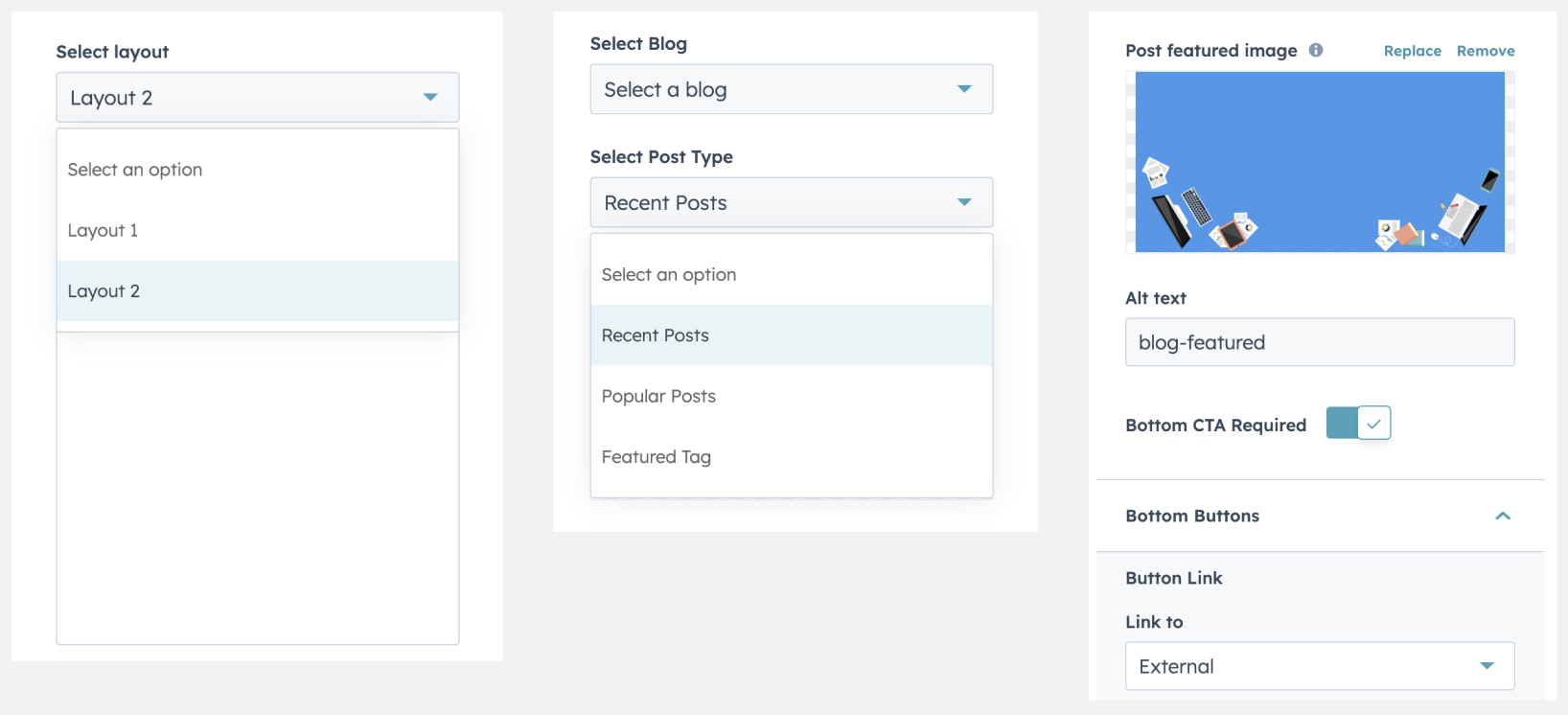
- Select the blog based on Recent Posts, Popular Posts, Featured Tag
- Set the post layout as boxed or full width based on the option provided.
- Option to hide/show blog post tags.
Customization Options:
- Style: Choose from various styles to match your website's aesthetic.
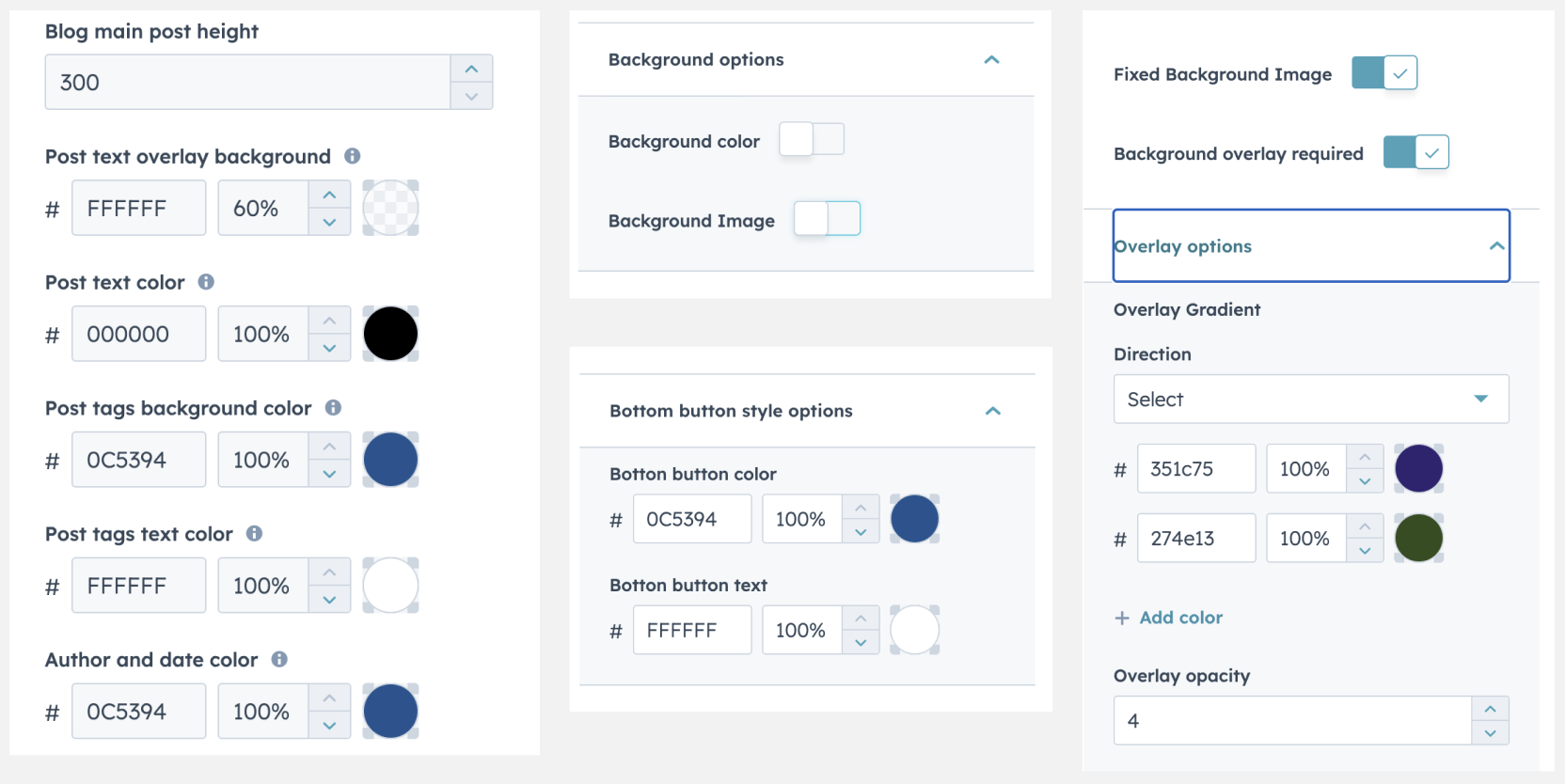
- background color or image option with overlay color over the image change option.
- Layout option: We have 2 layout options available.
- Color: Customize the color scheme to complement your branding (gradient background option available).
- Module background gradient color/ background image update option available.
- Module header change/hide option
- Bottom Navigation option to navigate to the blog main page. we can on/off the CTA
- We have option to select Recent Posts, Popular Posts, Featured Tag
Support:
If you encounter any issues or have questions, reach out to our support team at hubspot@techclaro.com.
Feedback:
We value your feedback! If you have suggestions or encounter issues, please let us know at developer@techclaro.com
Note: Ensure that the module is appropriately placed to provide accurate progress tracking as users scroll through your content.
Testimonial with rating
Introduction:
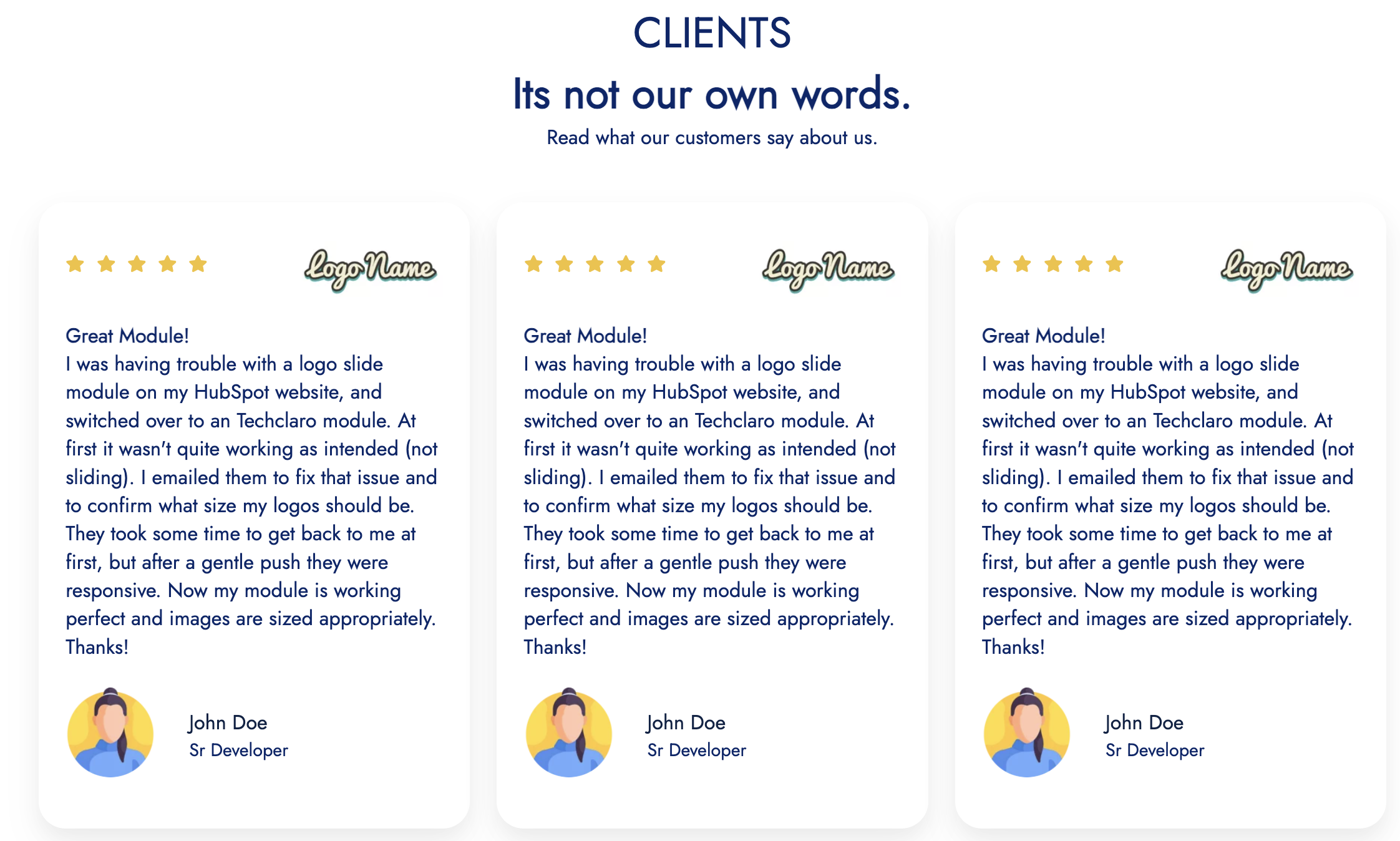
The Testimonial with Rating module is designed to showcase user testimonials along with a rating system on your HubSpot website. It allows you to highlight positive feedback from your customers, providing a dynamic and engaging way to build trust.
Installation:
- Visit the HubSpot Marketplace.
- Search for "Testimonial with rating" module.
- Click "Install" to add the module to your HubSpot account.
Usage:
- After installation, locate the module in your HubSpot dashboard.
- Add the module to your desired page or template using the drag-and-drop builder.
- Customize the layout, color scheme, and typography to match your website's design.
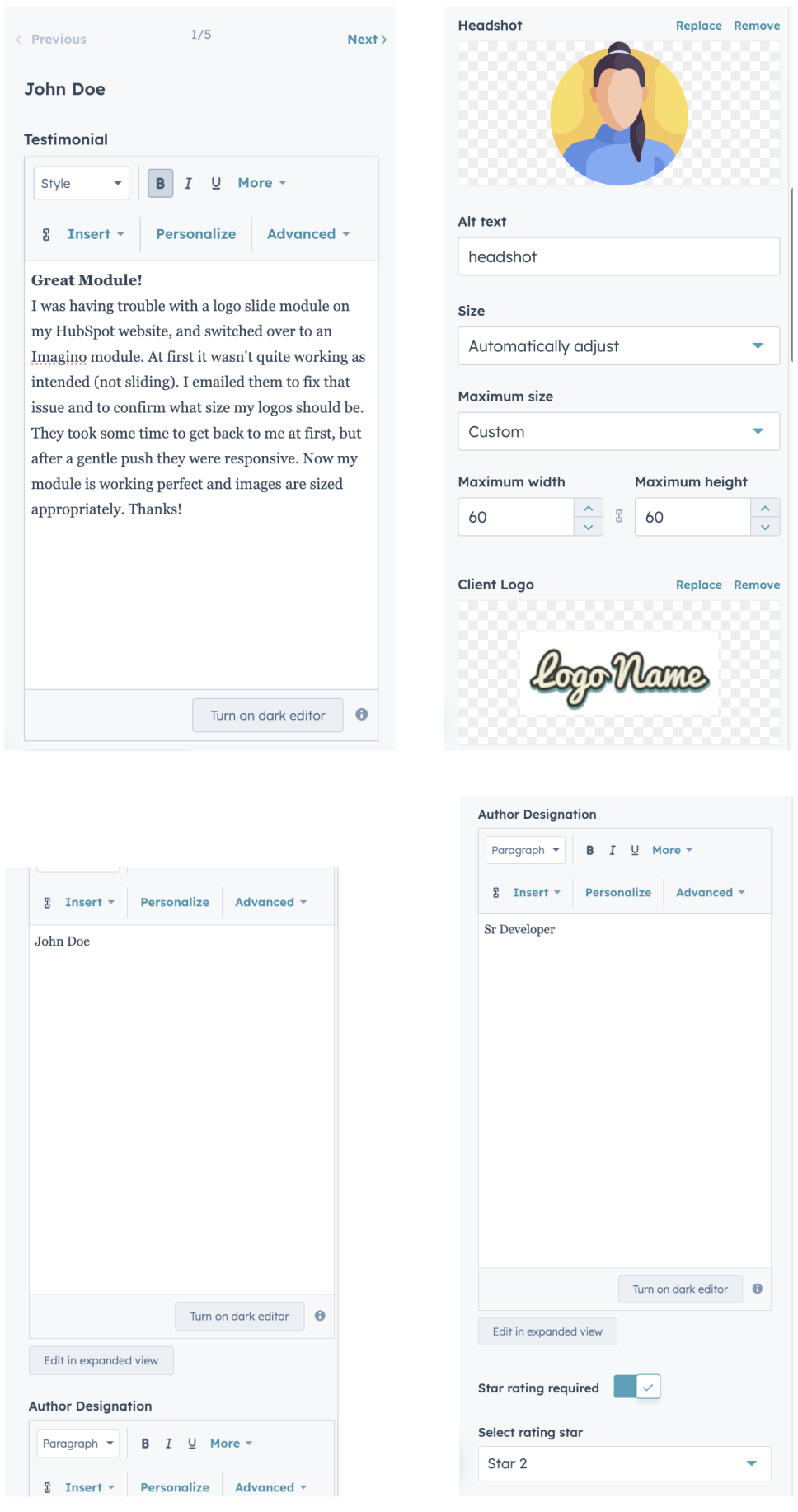
- Add testimonials with corresponding ratings through the module's intuitive interface.
Customization Options:
- Style: Choose from various styles to match your website's aesthetic.
- Testimonial Content: Add the testimonials shared by clients/users.
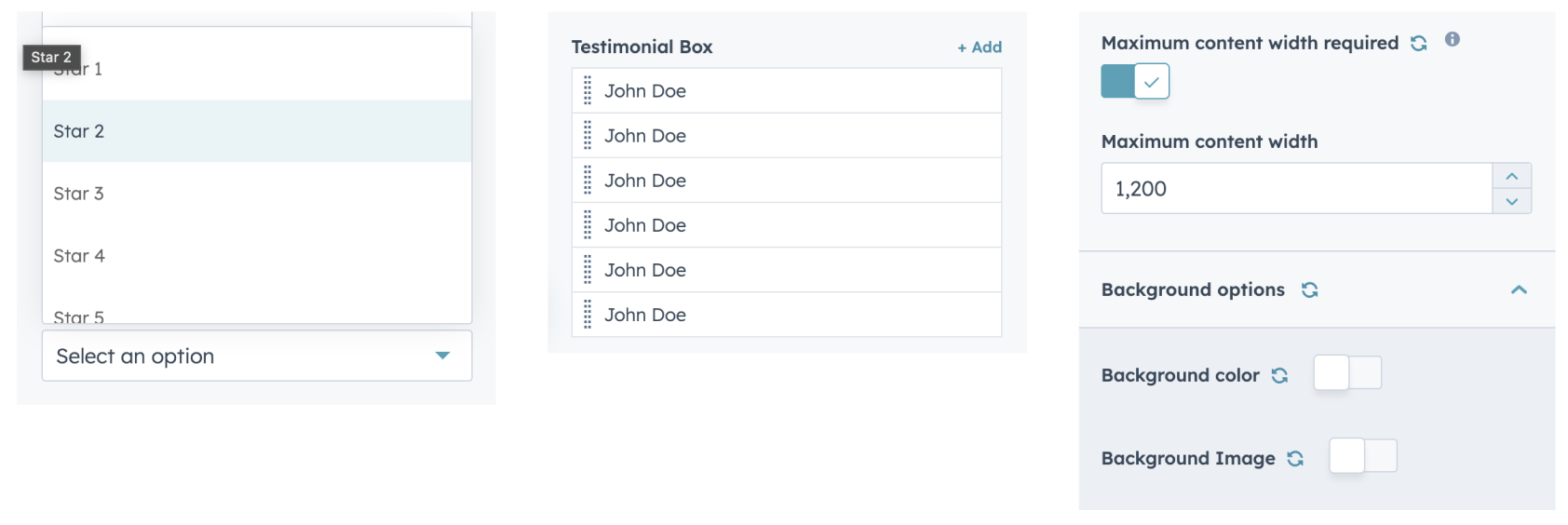
- Rating Input: Add rating star form 1 to 5
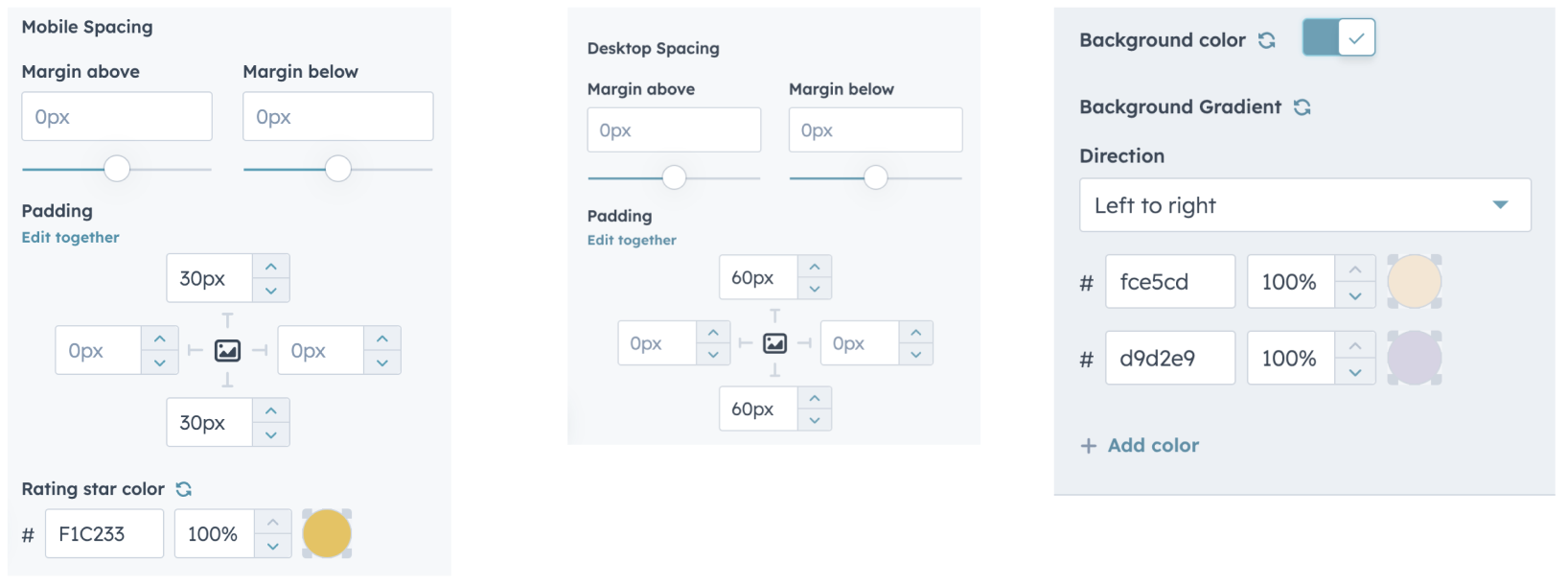
- Color: Customize the color scheme to complement your branding (gradient background option available).
- Client/user logo on/off and change option.
- Client/user Headshot, name, description change option.
- Quote icon on/off and color change option
- Unlimited number of testimonial can be added.
- Module background gradient color/ background image update option available.
- Module header change/hide option
Support:
If you encounter any issues or have questions, reach out to our support team at hubspot@techclaro.com.
Feedback:
We value your feedback! If you have suggestions or encounter issues, please let us know at developer@techclaro.com
Note: Ensure that the module is appropriately placed to provide accurate progress tracking as users scroll through your content.
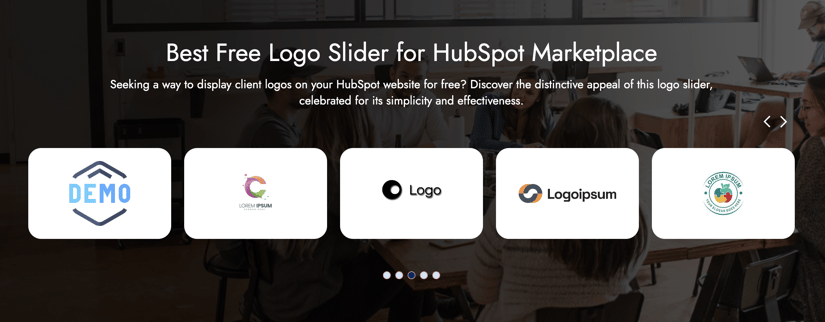
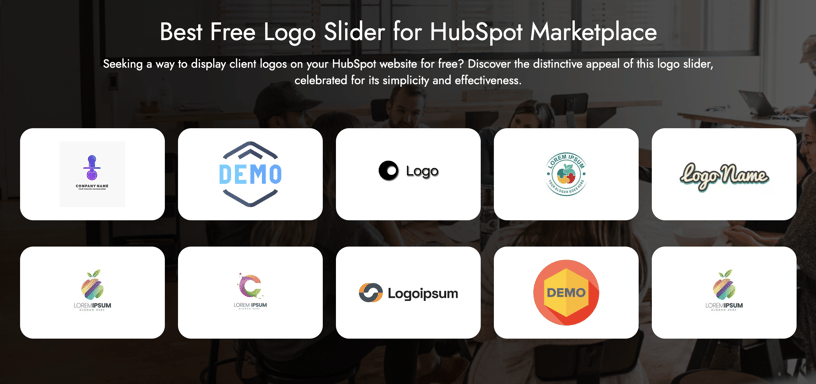
Logo Slider for HubSpot Marketplace
Introduction:
Installation:
- Visit the HubSpot Marketplace.
- Search for "Logo Carousel" module.
- Click "Install" to add the module to your HubSpot account.
Usage:
- After installation, locate the module in your HubSpot dashboard.
- Add the module to your desired page or template using the drag-and-drop builder.
- Customize the layout, color scheme, and typography to match your website's design.
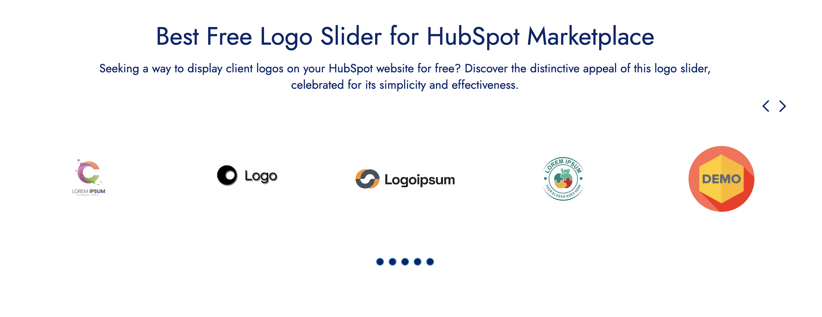
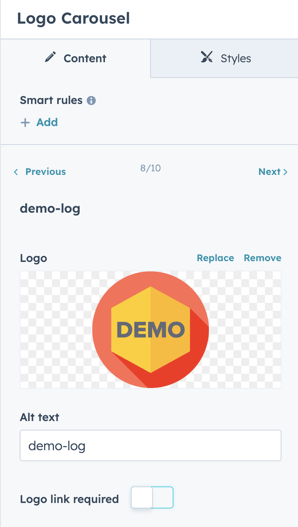
- Add unlimited logos with link using module's intuitive interface.
Customization Options:
- Style: Choose from various styles to match your website's aesthetic.
- Logo: Unlimited logos can be added.
- Rating Input: Add rating star form 1 to 5
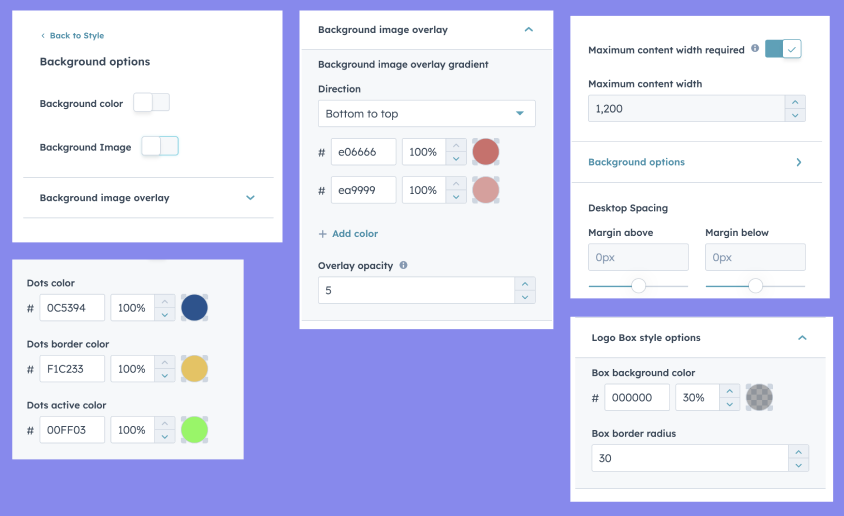
- Colors: Customize the color scheme to complement your branding (gradient background option available).
- Single logo link add/change option.
- Module background gradient color/ background image update option available.
- Module header change/hide option
- Slider arrow/dot icon on/off and color change option.
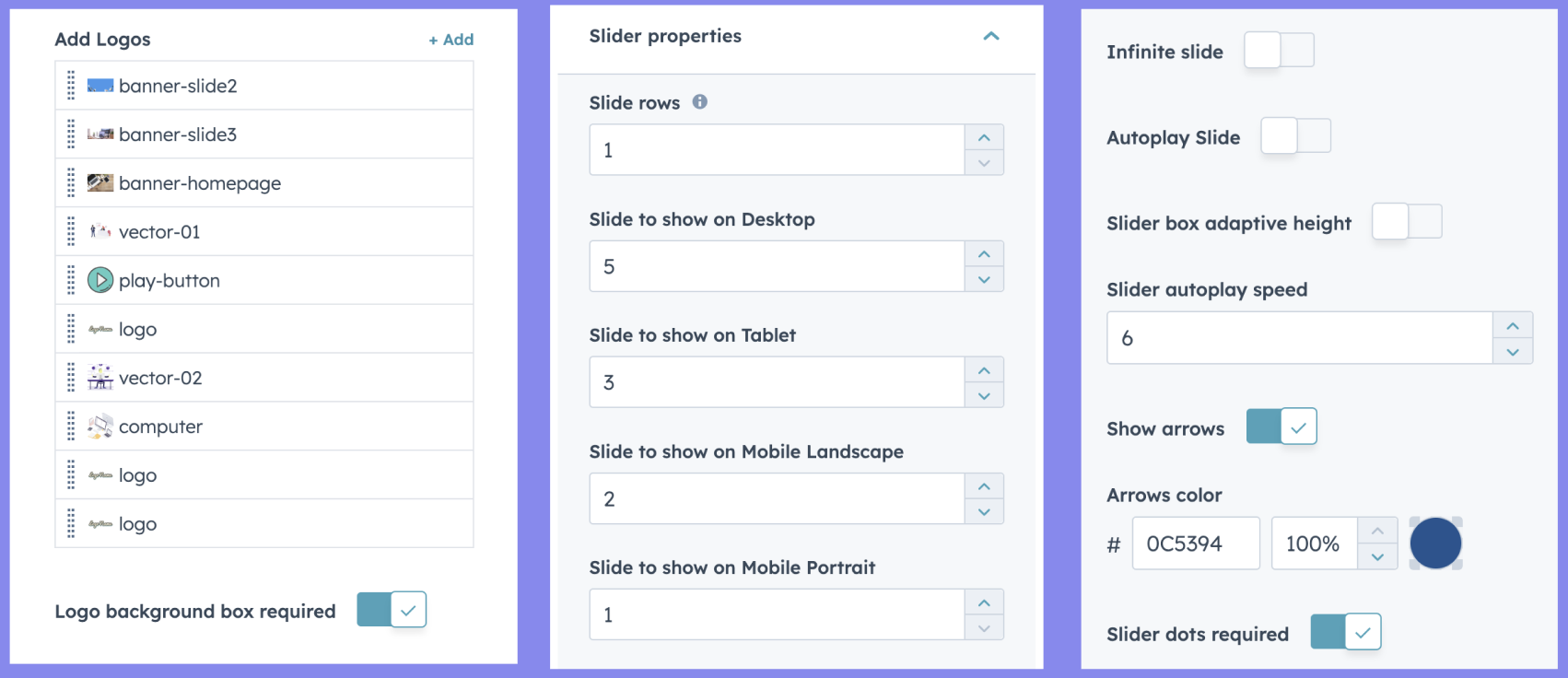
- Multiple row's can be added
- Option to update the number of logos can be visible on load.
- Whether it's a desktop or mobile, logos always shine.
- Slider can be optimised using multiple steps.
- Trust in its seamless performance within the HubSpot environment.
Support:
If you encounter any issues or have questions, reach out to our support team at hubspot@techclaro.com.
Feedback:
We value your feedback! If you have suggestions or encounter issues, please let us know at developer@techclaro.com
Note: Ensure that the module is appropriately placed to provide accurate progress tracking as users scroll through your content.
Location Map for HubSpot Marketplace
Introduction:
Installation:
- Visit the HubSpot Marketplace.
- Search for "Location Map" module.
- Click "Install" to add the module to your HubSpot account.
Usage:
- After installation, locate the module in your HubSpot dashboard.
- Add the module to your desired page or template using the drag-and-drop builder.
- Customize the layout, color scheme, and typography to match your website's design.
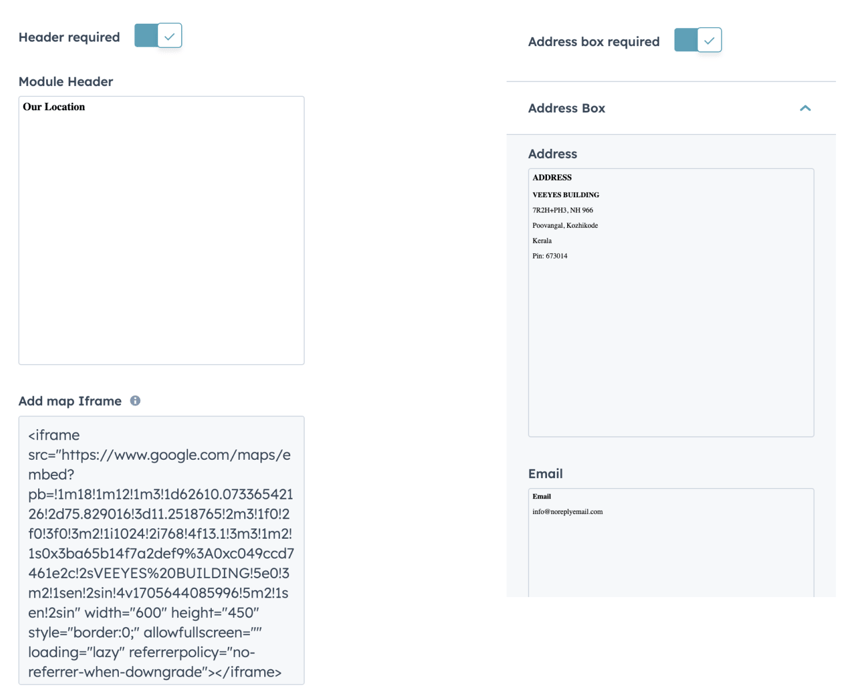
- Add Map iframe code with address locations.
Customization Options:
- Style: Choose from various styles to match your website's aesthetic.
- Iframe: You can get the iframe of your location from the map directly and add it to the location field.
- Address: Customise the address section with multiple details
- Colors: Customize the color scheme to complement your branding (gradient background option available).
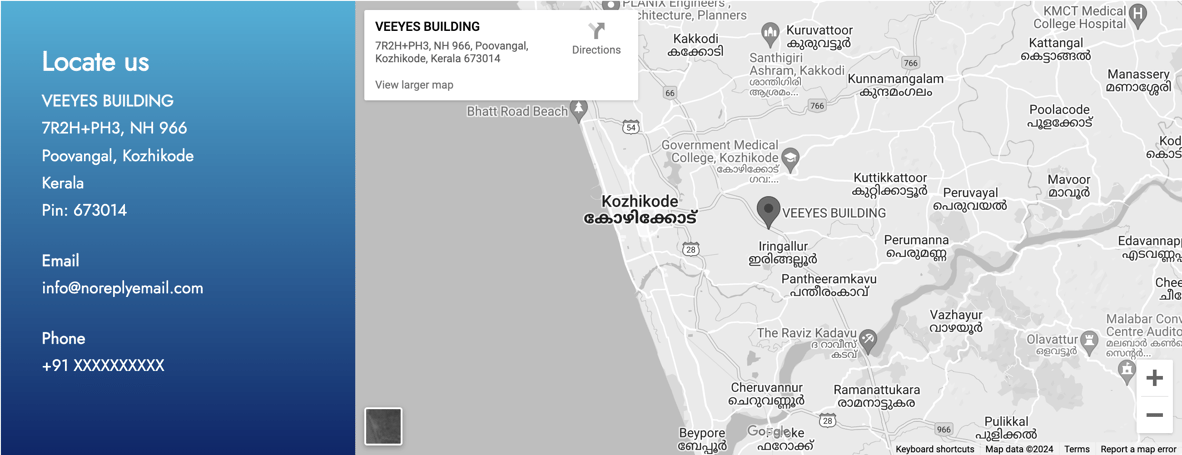
- Full width map option.
- Address box on/off option.
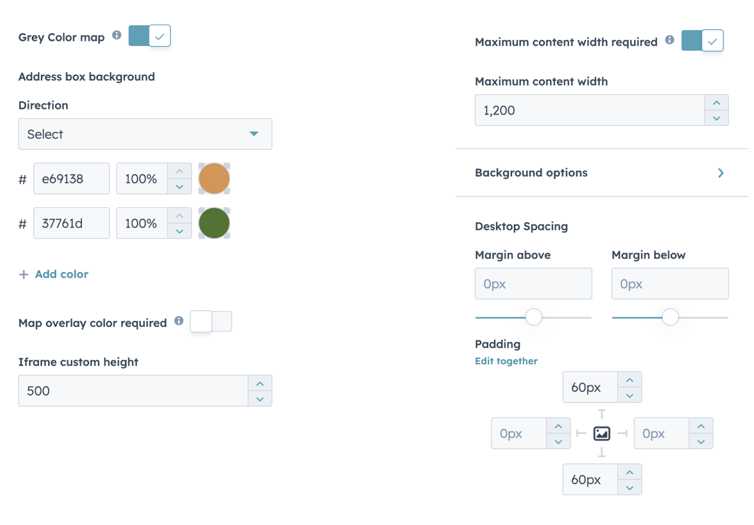
- Option to change map color to Grey
- Address box background gradient color change option.
- Module header change/hide option.
- Iframe height adjust option.
- Map overlay layer can be added.
- Whether it's a desktop or mobile, Location map always shine.
- Trust in its seamless performance within the HubSpot environment.
Support:
If you encounter any issues or have questions, reach out to our support team at hubspot@techclaro.com.
Feedback:
We value your feedback! If you have suggestions or encounter issues, please let us know at developer@techclaro.com
Note: Ensure that the module is appropriately placed to provide accurate progress tracking as users scroll through your content.
Typewriter banner for HubSpot Marketplace
Introduction:
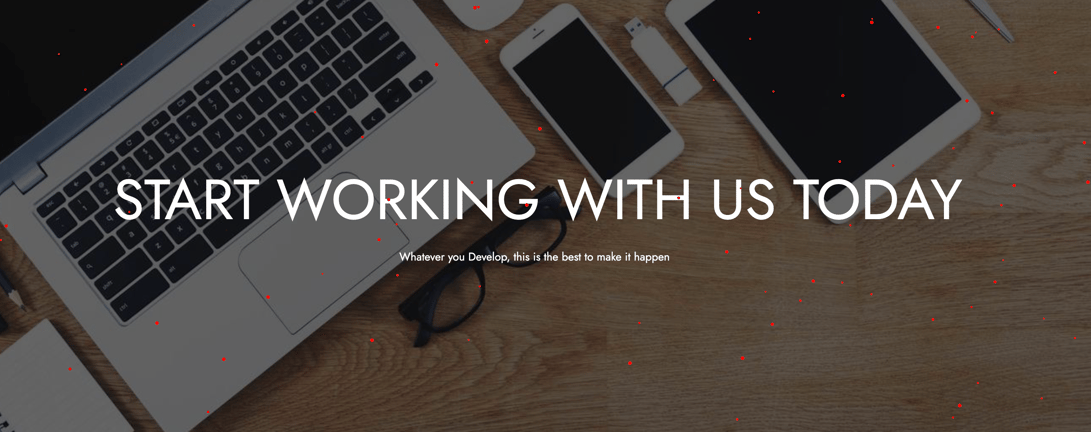
Installation:
- Visit the HubSpot Marketplace.
- Search for "Typewriter banner" module.
- Click "Install" to add the module to your HubSpot account.
Usage:
- After installation, locate the module in your HubSpot dashboard.
- Add the module to your desired page or template using the drag-and-drop builder.
- Customize the layout, color scheme, and typography to match your website's design.
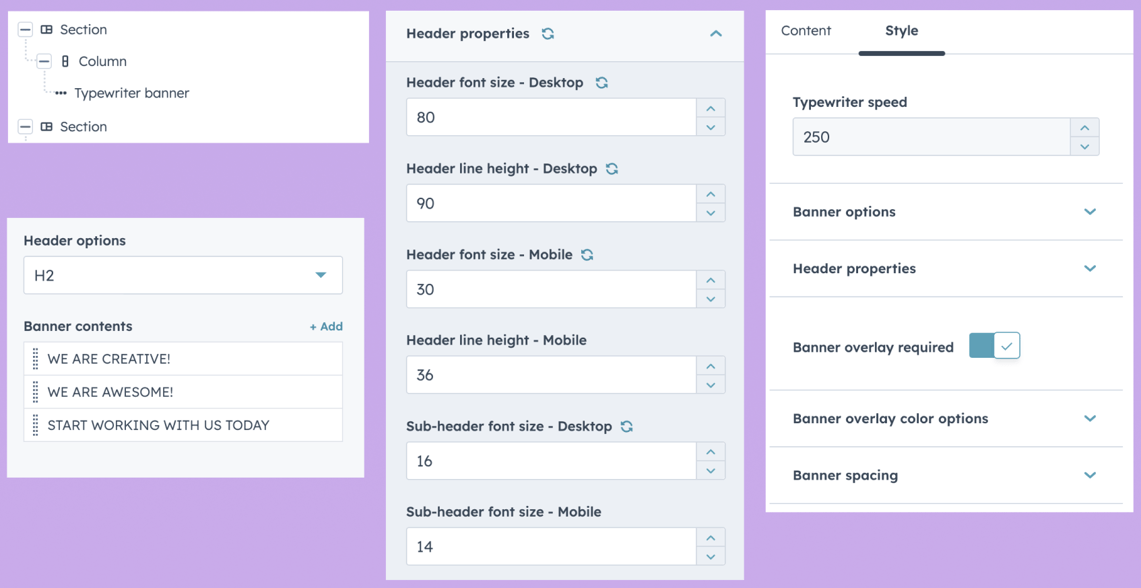
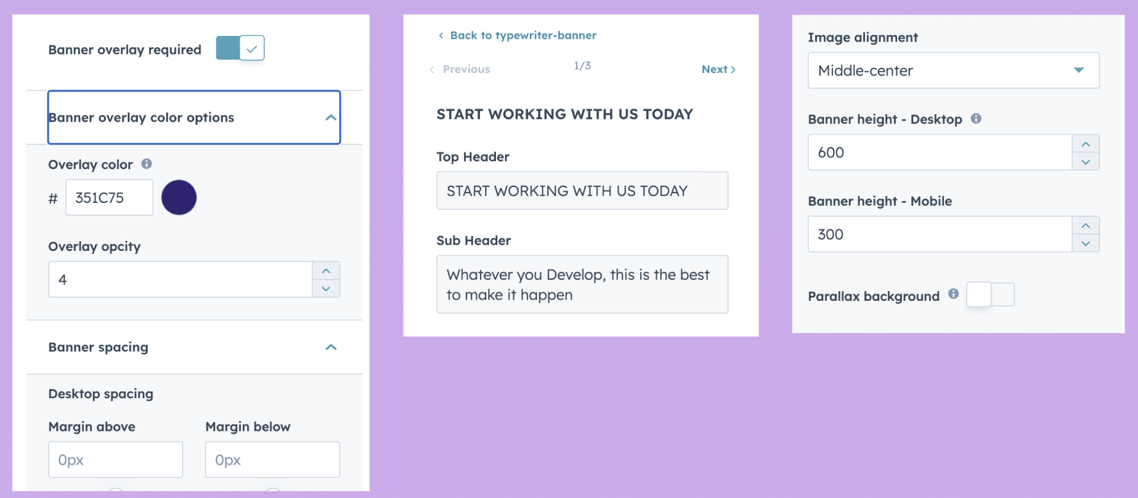
- Customise the banner header texts and background image you need
Customization Options:
- Style: Choose from various styles to match your website's aesthetic.
- Dynamic Text Animation: Effortlessly create banners with text that comes to life, as if typed in real-time.
- Colors: Customize the header colors accordingly.
- Customization Options: Tailor the speed, font, and styling to match your brand's aesthetic seamlessly.
- Responsive Design: Ensures a consistent and stunning experience across all devices.
- Easy Integration: Simply drop the module into your HubSpot template and start captivating your audience immediately.
- Parallax background option
- Banner overlay color layer can be added and adjusrted.
- Whether it's a desktop or mobile, Location map always shine.
- Trust in its seamless performance within the HubSpot environment.
Ideal Use Cases:
- Homepage Banners: Grab attention with eye-catching introductory messages.
- Product Highlights: Showcase key product features in a memorable way.
- Event Announcements: Make event details memorable with animated announcements.
Why Choose Typewriter Banner?
The Typewriter JS Banner module is not just a visual enhancement but a storytelling tool. Craft narratives, highlight key messages, and create a memorable user experience that leaves a lasting impression on your visitors.
Elevate your website aesthetics today with Typewriter JS Banner!
Get started and make your content stand out!
Support:
If you encounter any issues or have questions, reach out to our support team at hubspot@techclaro.com.
Feedback:
We value your feedback! If you have suggestions or encounter issues, please let us know at developer@techclaro.com
Note: Ensure that the module is appropriately placed to provide accurate progress tracking as users scroll through your content.
Announcement bar
Introduction:
Elevate your website's engagement and conversion rates with the Announcement Bar with CTA Module, exclusively designed for HubSpot users. Seamlessly integrated into HubSpot's CMS platform, this module empowers you to create eye-catching announcement bars with compelling calls-to-action (CTAs) to effectively communicate with your audience and drive desired actions.

Installation:
- Visit the HubSpot Marketplace.
- Search for "Announcement bar" module.
- Click "Install" to add the module to your HubSpot account.
Usage:
- After installation, locate the module in your HubSpot dashboard.
- Add the module to your desired page or template using the drag-and-drop builder.
- Customize the module settings as needed, including appearance and behavior.
Customization Options:
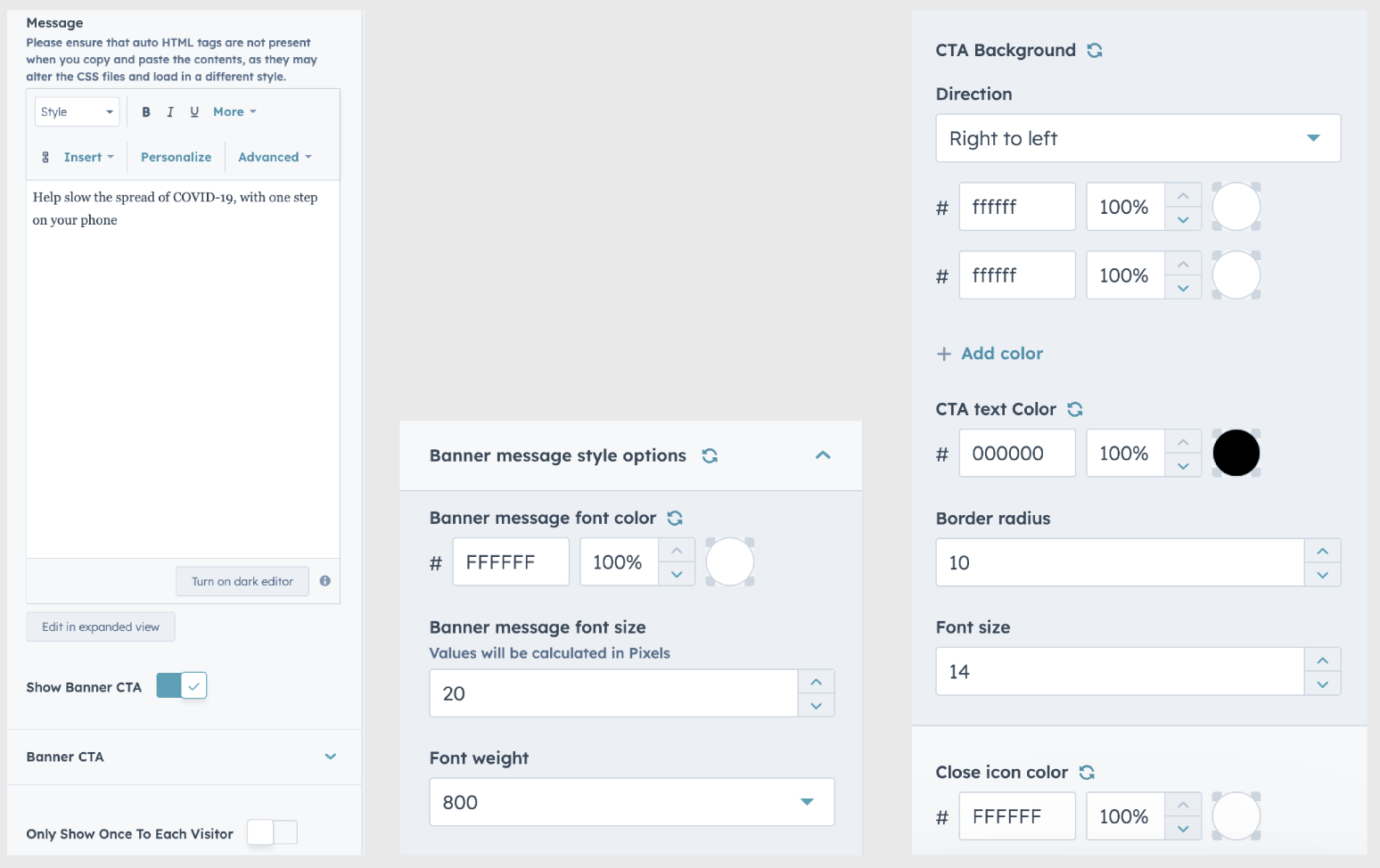
- Style: Choose from various styles to match your website's aesthetic.
- Load banner only once: Option to load banner only once.
- Color: Customize the color scheme to complement your branding (gradient option available).
- Font styles: Option to change the font size and color.
- CTA hide/show option.
- Close button to close the annoncement bar
- Close button style: Option to adjust the close button styles
Support:
If you encounter any issues or have questions, reach out to our support team at hubspot@techclaro.com.
Feedback:
We value your feedback! If you have suggestions or encounter issues, please let us know at developer@techclaro.com
Image slider
Introduction:
Enhance your website's visual appeal with our fully responsive Image Slider HubSpot module. Ideal for showcasing images on any device, this slider offers seamless functionality and customization.

Installation:
- Visit the HubSpot Marketplace.
- Search for "Image slider" module.
- Click "Install" to add the module to your HubSpot account.
Usage:
- After installation, locate the module in your HubSpot dashboard.
- Add the module to your desired page or template using the drag-and-drop builder.
- Customize the module settings as needed, including appearance and behavior.
Customization Options:
- Style: Choose from various styles to match your website's aesthetic.
- Color: Customize the color scheme to complement your branding.
- Module header hide/show option.
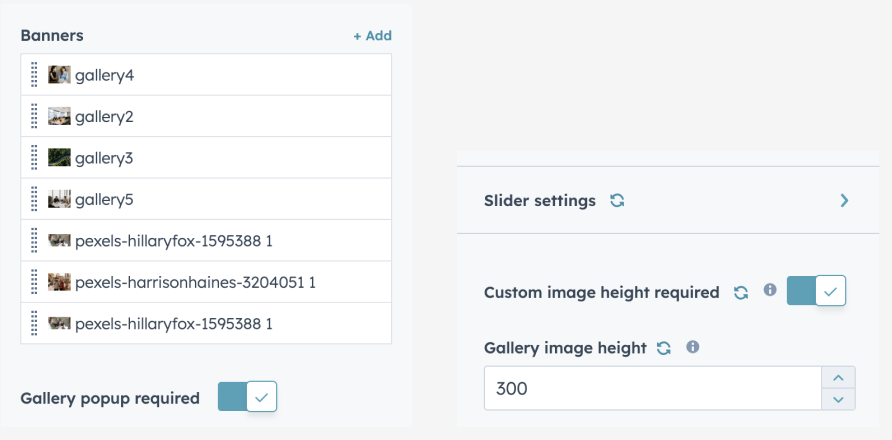
- Option to adjust Slider column count
- Option to popup images as gallery.
Support:
If you encounter any issues or have questions, reach out to our support team at hubspot@techclaro.com.
Feedback:
We value your feedback! If you have suggestions or encounter issues, please let us know at developer@techclaro.com
Breadcrumbs
Introduction:
Transform your website into a visual masterpiece with the Breadcrumbs. This dynamic and highly customisable module enables you to display page links in a modern layout, ensuring a stunning and engaging presentation of your visual content.


Installation:
- Visit the HubSpot Marketplace.
- Search for "Breadcrumbs" module.
- Click "Install" to add the module to your HubSpot account.
Usage:
- After installation, locate the module in your HubSpot dashboard.
- Add the module to your desired page or template using the drag-and-drop builder.
- Customize the module settings as needed, including appearance and behavior.
Customization Options:
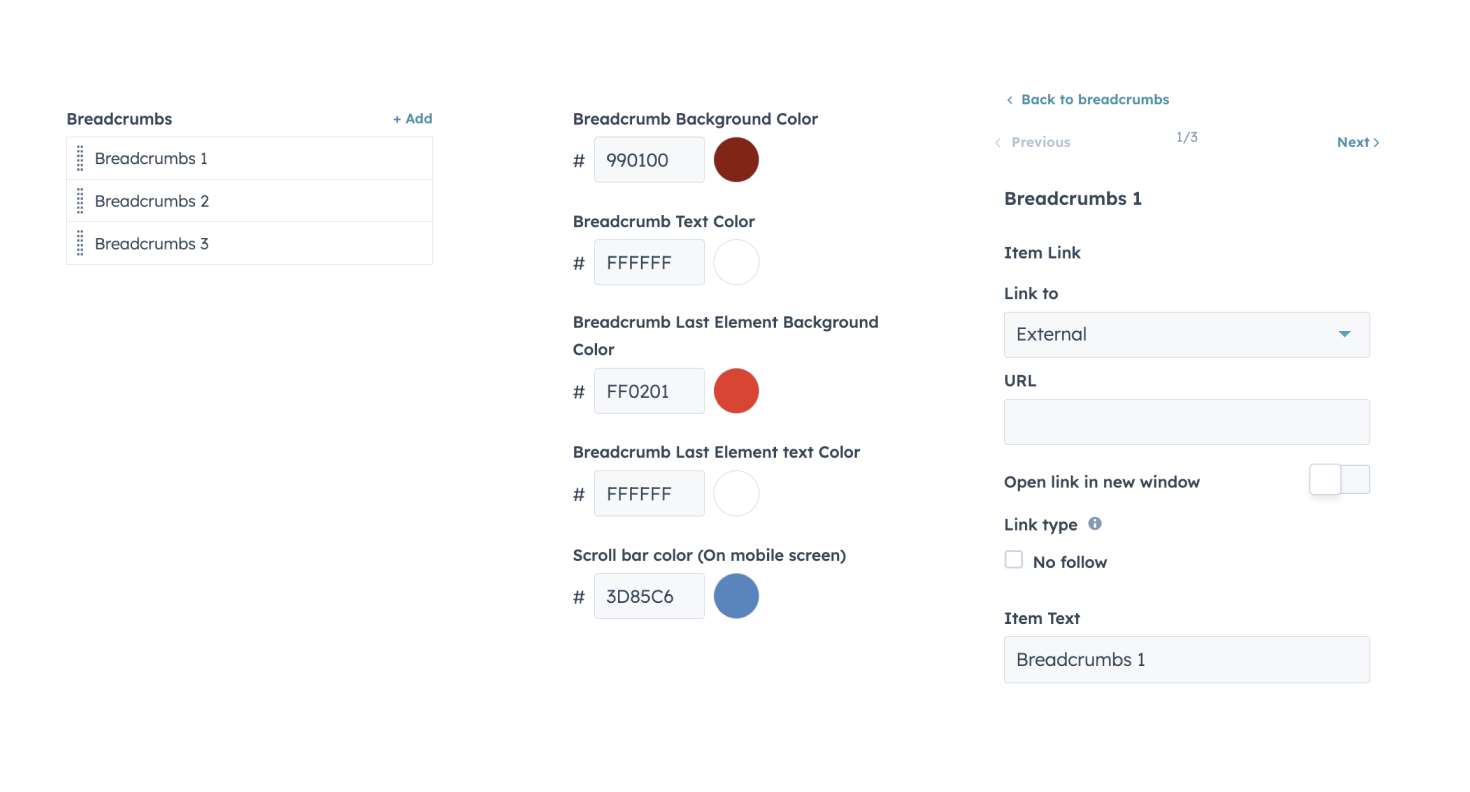
- Style: Choose from various styles to match your website's aesthetic.
- Color: Customize the color scheme to complement your branding.
- Option to adjust Breadcrumbs count
Support:
If you encounter any issues or have questions, reach out to our support team at hubspot@techclaro.com.
Feedback:
We value your feedback! If you have suggestions or encounter issues, please let us know at developer@techclaro.com
Features Listing
Introduction:
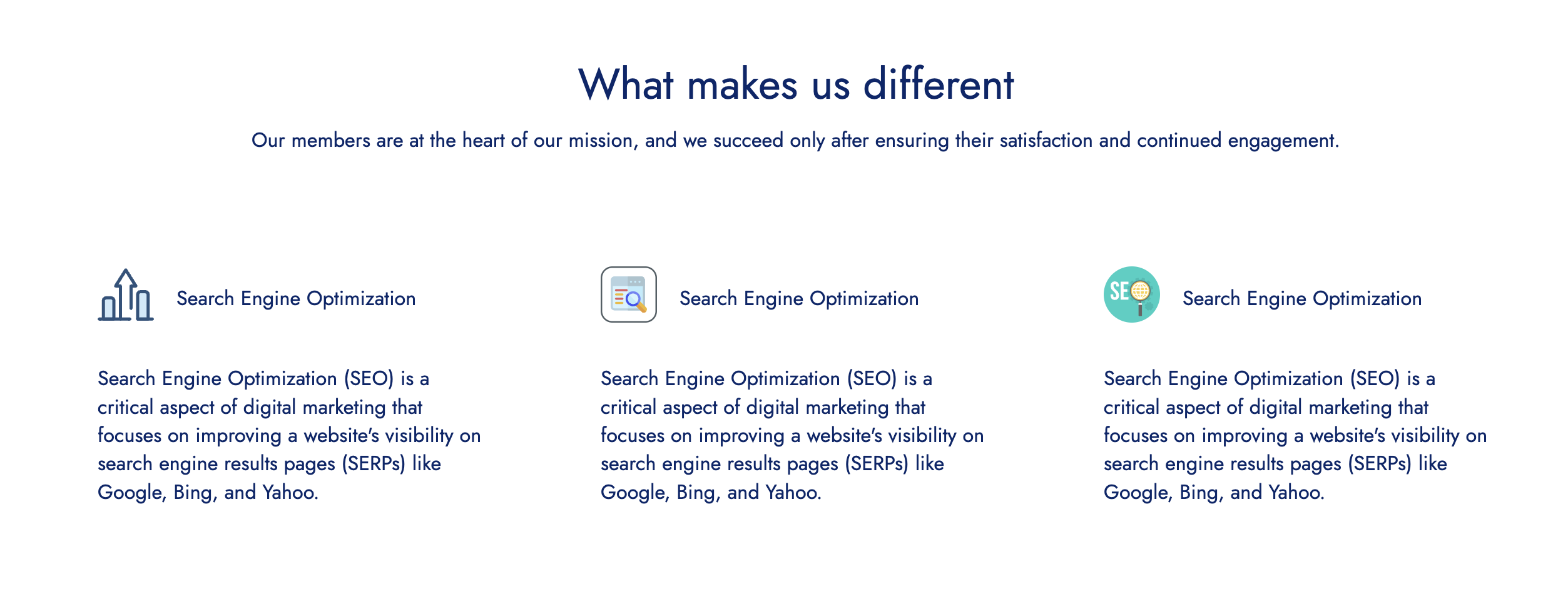
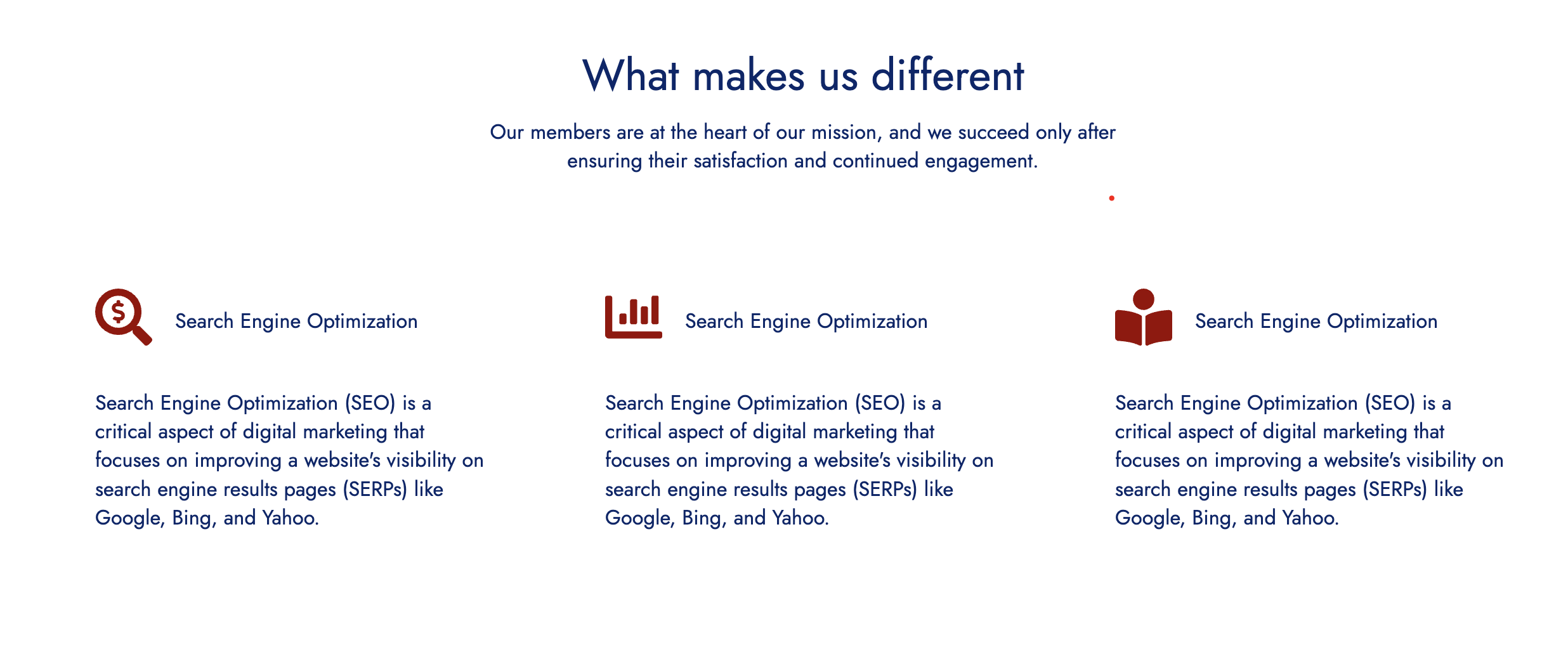
Transform your website into a visual masterpiece with the Features Listing module. This dynamic and highly customizable module enables you to list features in a modern, listing style grid layout, ensuring a stunning and engaging presentation of your visual content.
Installation:
- Visit the HubSpot Marketplace.
- Search for "Features Listing" module.
- Click "Install" to add the module to your HubSpot account.
Usage:
- After installation, locate the module in your HubSpot dashboard.
- Add the module to your desired page or template using the drag-and-drop builder.
- Customize the module settings as needed, including appearance and behavior.
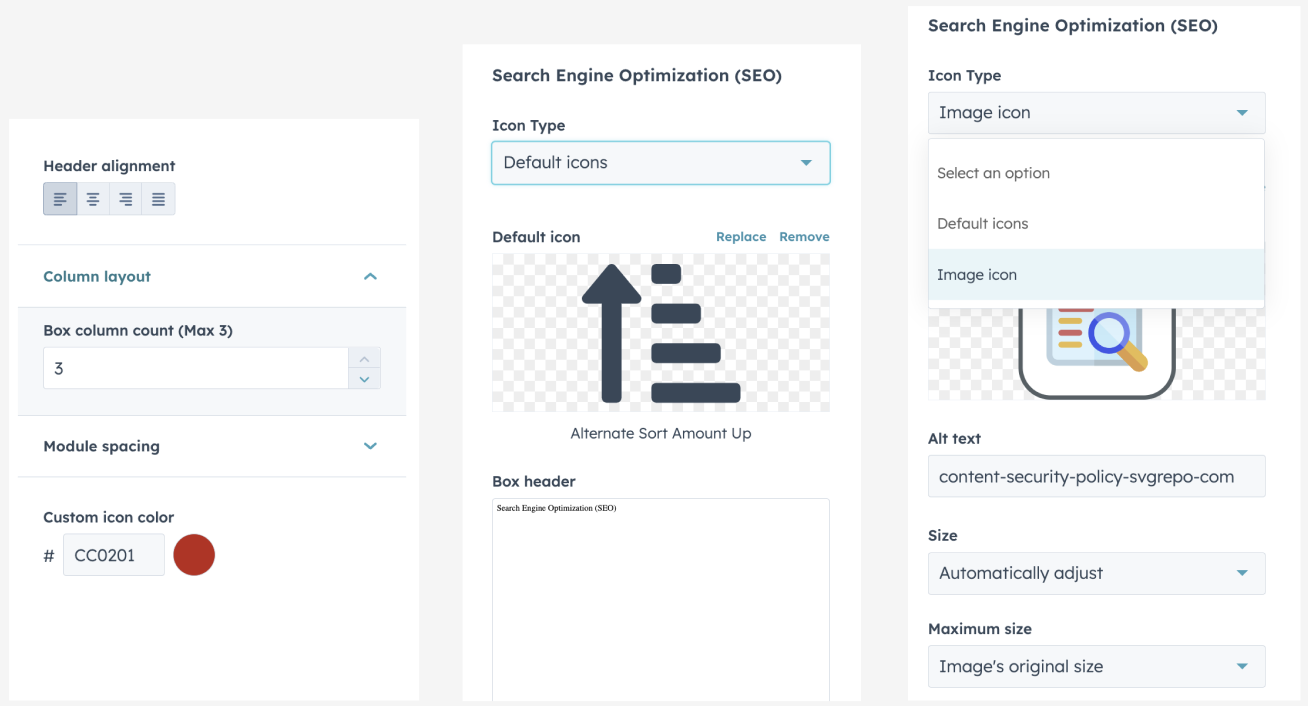
Customization Options:
- Style: Choose from various styles to match your website's aesthetic.
- Color: Customize the color od the default icons to your branding.
- Unlimited listing can be added
- Columns can be set to 1, 2, 3 cols.
- Header aligment update option
- Option to add both icon image and icon
Support:
If you encounter any issues or have questions, reach out to our support team at hubspot@techclaro.com.
Feedback:
We value your feedback! If you have suggestions or encounter issues, please let us know at developer@techclaro.com
Image Slider
Introduction:
Enhance your website's visual appeal with our fully responsive Image Slider HubSpot module. Ideal for showcasing images on any device, this slider offers seamless functionality and customization.
Installation:
- Visit the HubSpot Marketplace.
- Search for "Image Slider" module.
- Click "Install" to add the module to your HubSpot account.
Usage:
- After installation, locate the module in your HubSpot dashboard.
- Add the module to your desired page or template using the drag-and-drop builder.
- Customize the module settings as needed, including appearance and behavior.
Customization Options:
- Style: Choose from various styles to match your website's aesthetic.
- Color: Customize the color od the default icons to your branding.
- Unlimited images can be added
- Option to show slider image in popup
- Hide/show option for module header
Support:
If you encounter any issues or have questions, reach out to our support team at hubspot@techclaro.com.
Feedback:
We value your feedback! If you have suggestions or encounter issues, please let us know at developer@techclaro.com
Countdown Timer
Introduction:
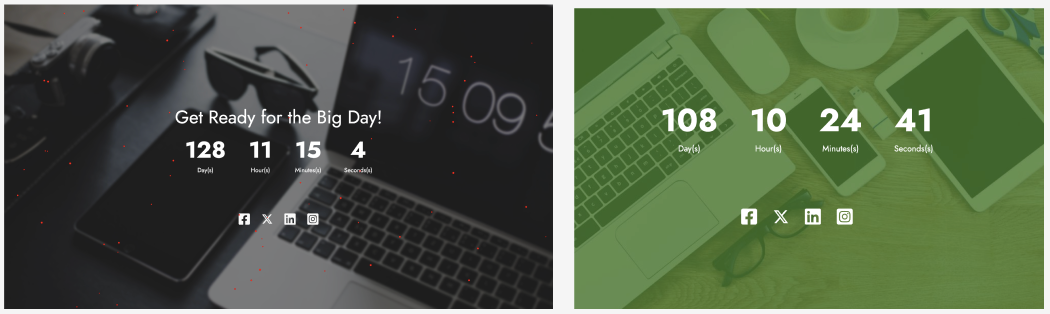
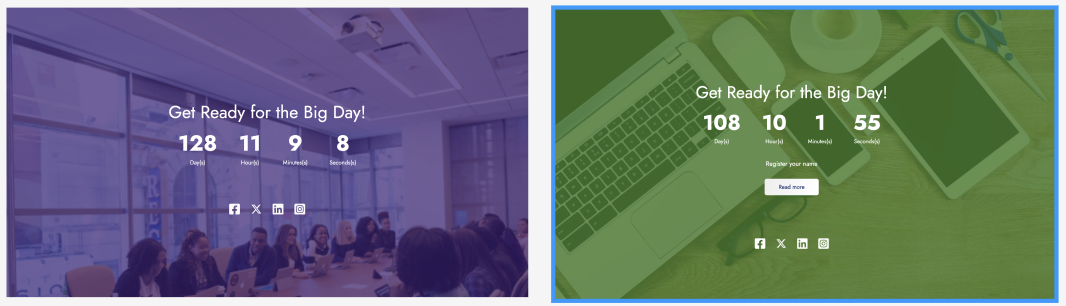
The Countdown Timer module is a powerful tool designed to enhance your marketing campaigns by adding urgency and visual appeal. Whether you're promoting a limited-time sale, launching a product, or counting down to an event, this module helps capture attention and encourage action.
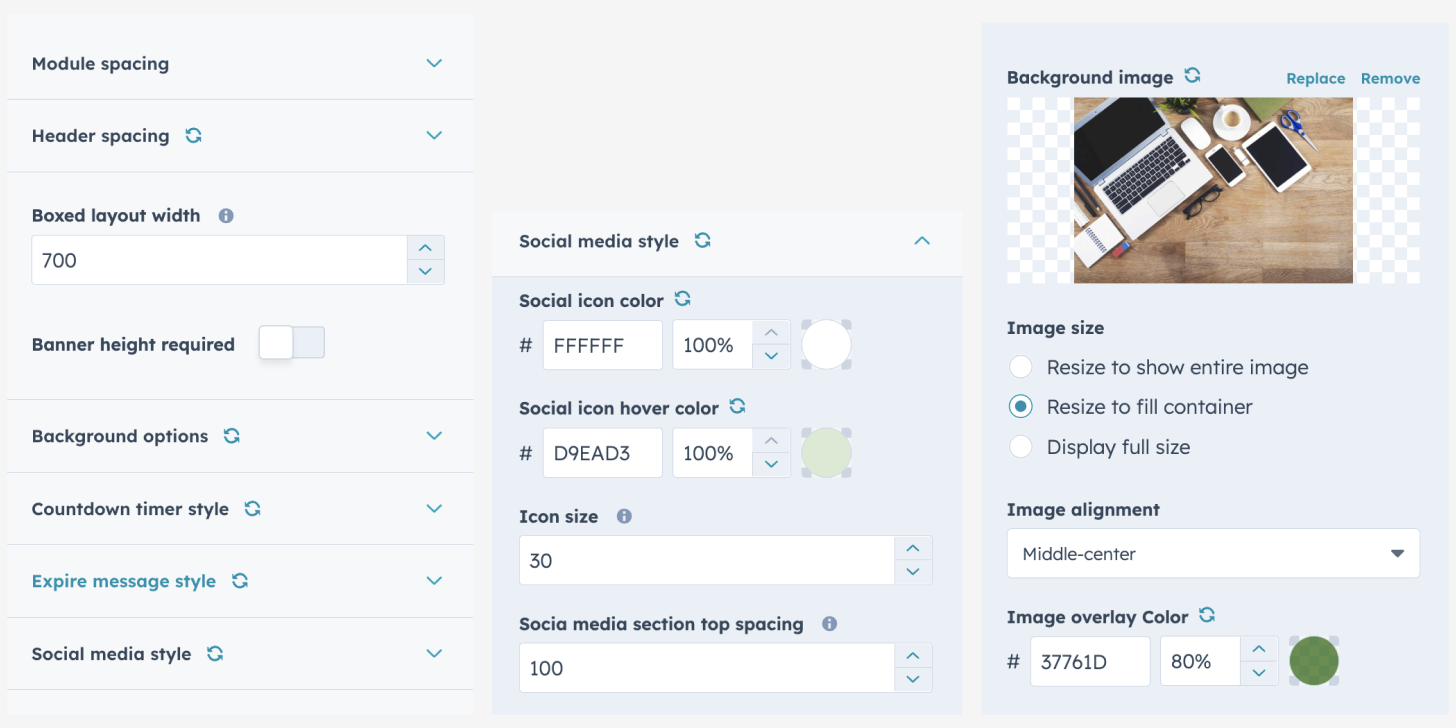
With a high level of customization, you can match the timer's design seamlessly with your brand. From background images to custom colors, social links, and expiration text, this module gives you complete control—without needing a developer.
Installation:
- Visit the HubSpot Marketplace.
- Search for "Countdown Timer" module.
- Click "Install" to add the module to your HubSpot account.
Usage:
- After installation, locate the module in your HubSpot dashboard.
- Add the module to your desired page or template using the drag-and-drop builder.
- Customize the module settings as needed, including appearance and behavior.
Customization Options
-
Style Variants: Select from different layout styles to best fit your campaign’s design and messaging.
-
Background Options: Use a background image or gradient color, with full control over overlay color and opacity for optimal visual appeal.
-
Color Customization: Adjust all colors—including timer digits, text, buttons, and overlays—to perfectly align with your brand’s color palette.
-
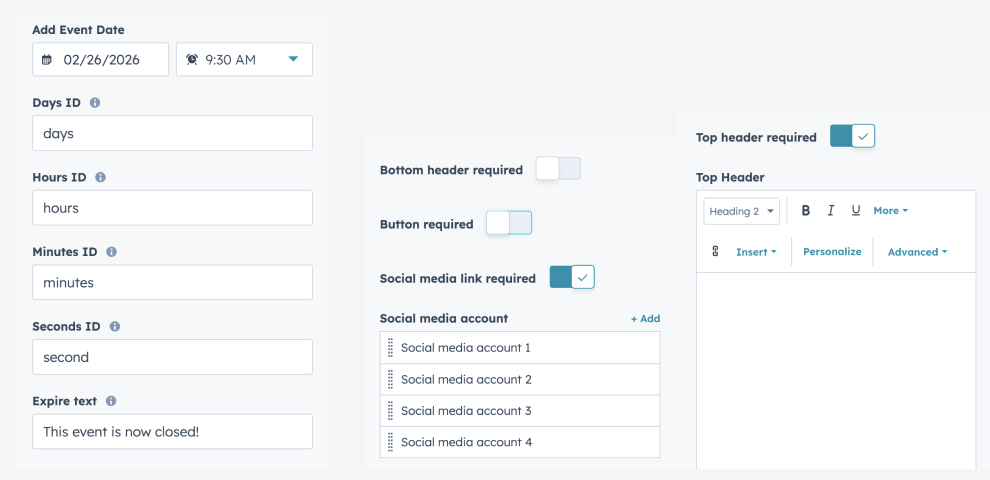
Header Visibility: Easily show or hide the top and bottom header sections to keep the design clean or add extra information as needed.
-
Event Date & Time: Set any date and time for the countdown to target, ideal for events, launches, or deadlines.
-
Social Links: Add links to any social media platform, with the ability to customize icons and colors for branding consistency.
-
Button Customization: Add a call-to-action button with editable text, link, background color, hover effects, and padding options.
-
Expiration Message: Create a custom message to display after the countdown ends, keeping your messaging relevant post-deadline.
-
Responsive Design Control: Adjust spacing, font sizes, and element visibility for mobile, tablet, and desktop views.
Support:
If you encounter any issues or have questions, reach out to our support team at hubspot@techclaro.com.
Feedback:
We value your feedback! If you have suggestions or encounter issues, please let us know at developer@techclaro.com